Introduction
Welcome to the official step-by-step guide for using the Auction Adda platform. This guide is organized into tabs to help you quickly find the information you need.
Click on the specific tabs below to access detailed instructions and screenshots for each feature:
- Marketplace: Book grounds, umpires, trophies, and other cricket services — see the cricket marketplace.
- Login/Registration: Learn how to create an account and log in securely.
- Dashboard: Manage your profile, track stats, and monitor auction activity.
- Auction: Set up auctions, configure rules, and participate in bidding.
- Auction Panel: Manage live auctions, view team/category summaries, and use advanced features like Booster and Penalty.
- Team: Create teams, assign owners, and manage budgets.
- Category: Organize players into categories with specific bid rules.
- Players: Register players, import data, and manage profiles.
- Live Preview: Stream auctions live and share overlays with your audience.
- Reports & Notifications: Download final auction reports and view automated WhatsApp notifications sent to players.
If any step in this guide is unclear, use the Contact Us page and include the tab name — we'll respond within one business day.
Login & Registration
Click the Register button in the top right corner. The registration page will open; fill out the form and click on the REGISTER button. After registration, you will receive a user verification link on your registered email. Click the link to verify your email, and your account will be activated. If you are already registered, click the Login button.
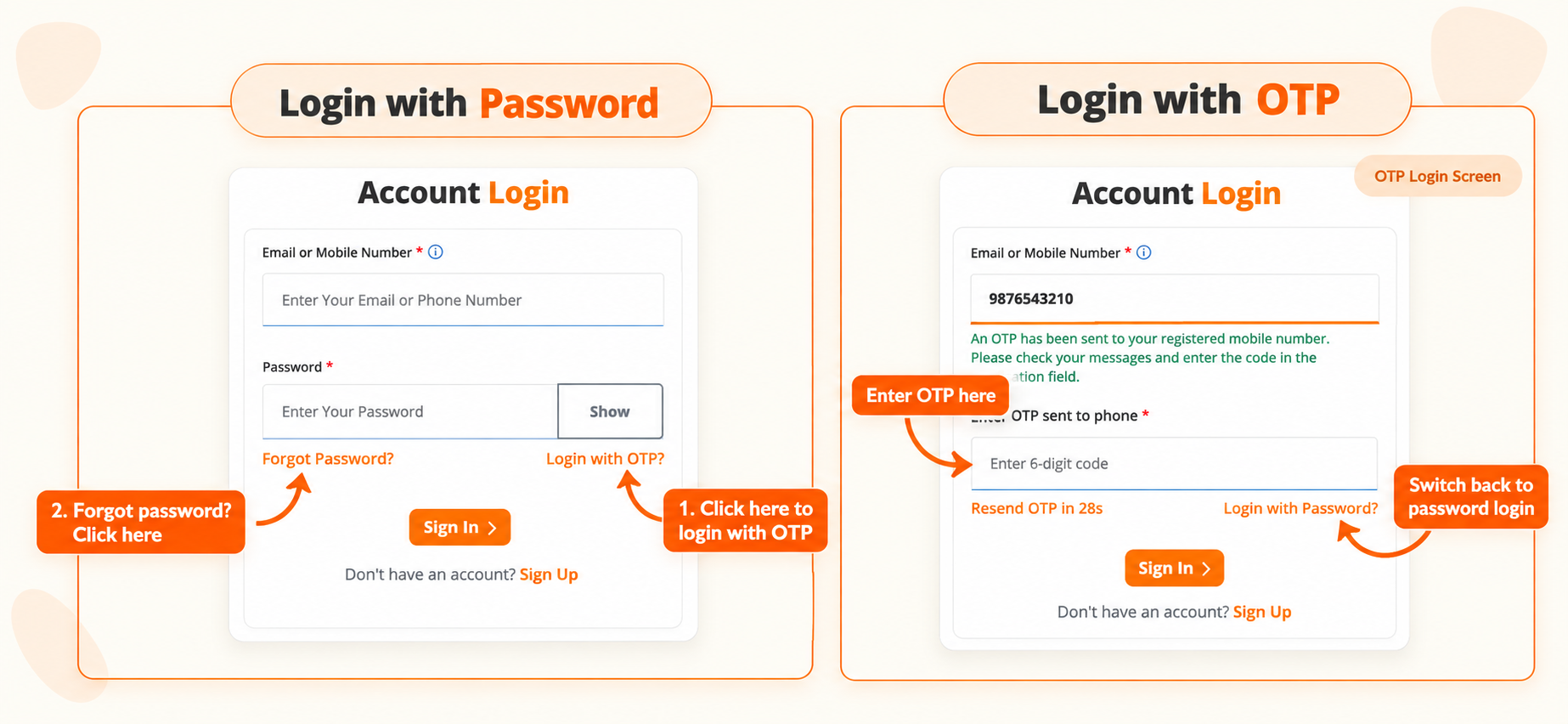
Figure 1: Login Screen
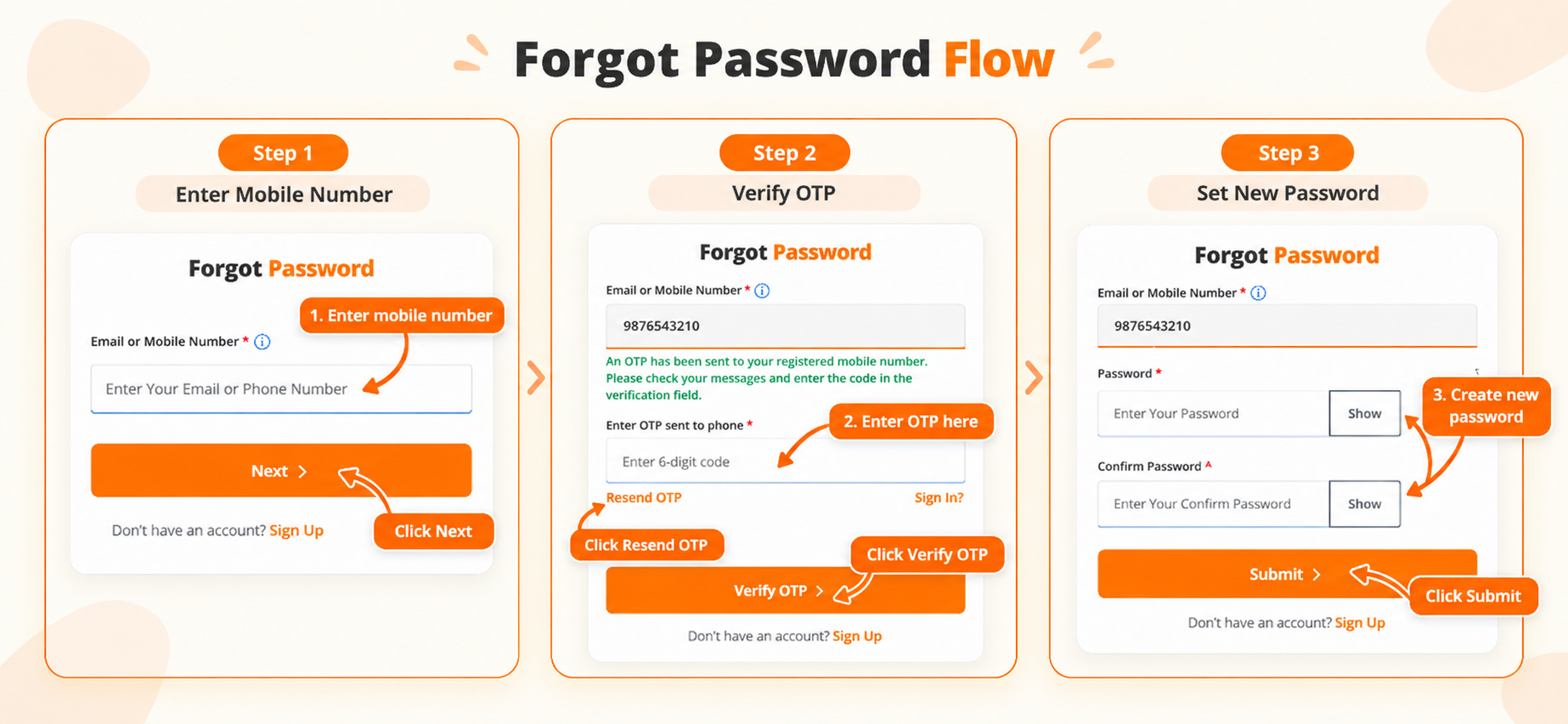
Figure 2: Forget Password Screen
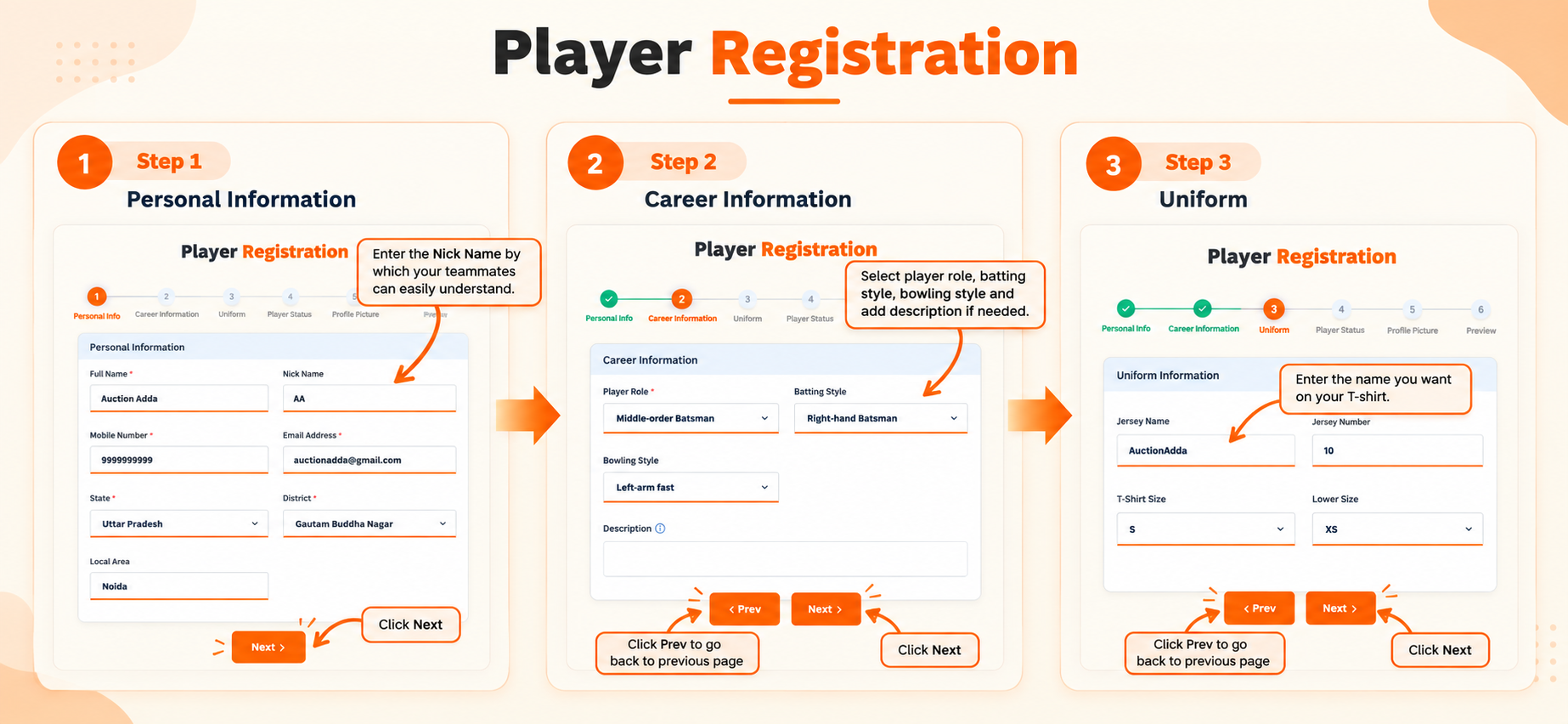
Figure 3: Steps 1-3 — Personal, Career & Uniform Information
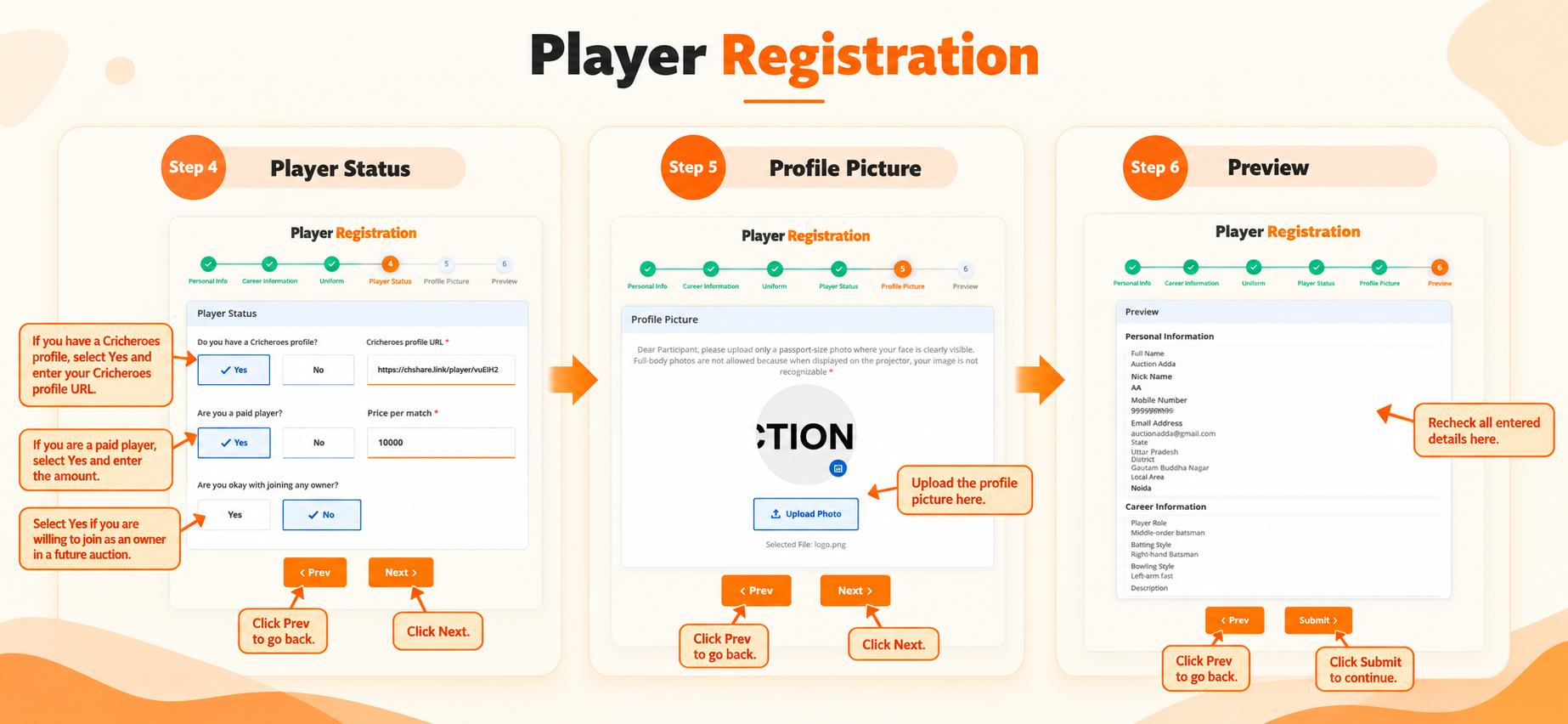
Figure 4: Steps 4-6 — Player Status, Profile Picture & Preview
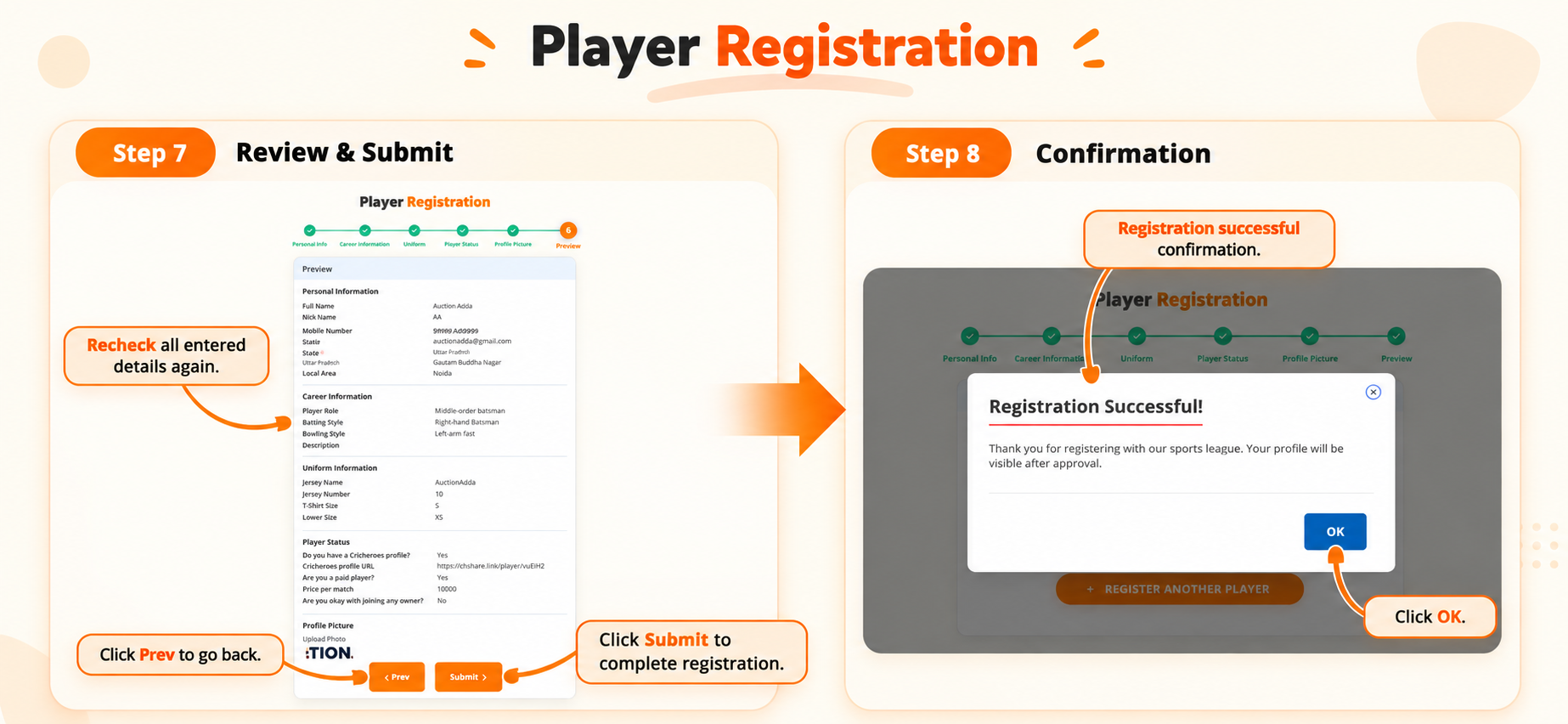
Figure 5: Steps 7-8 — Final Review, Submit & Confirmation
Dashboard Overview
Your central hub for managing your profile, tracking your auction statistics, and monitoring your activity. Organizers can view their created auctions, while players can track their participation, sold/unsold status, and average revenue. See the full platform features available from your dashboard.
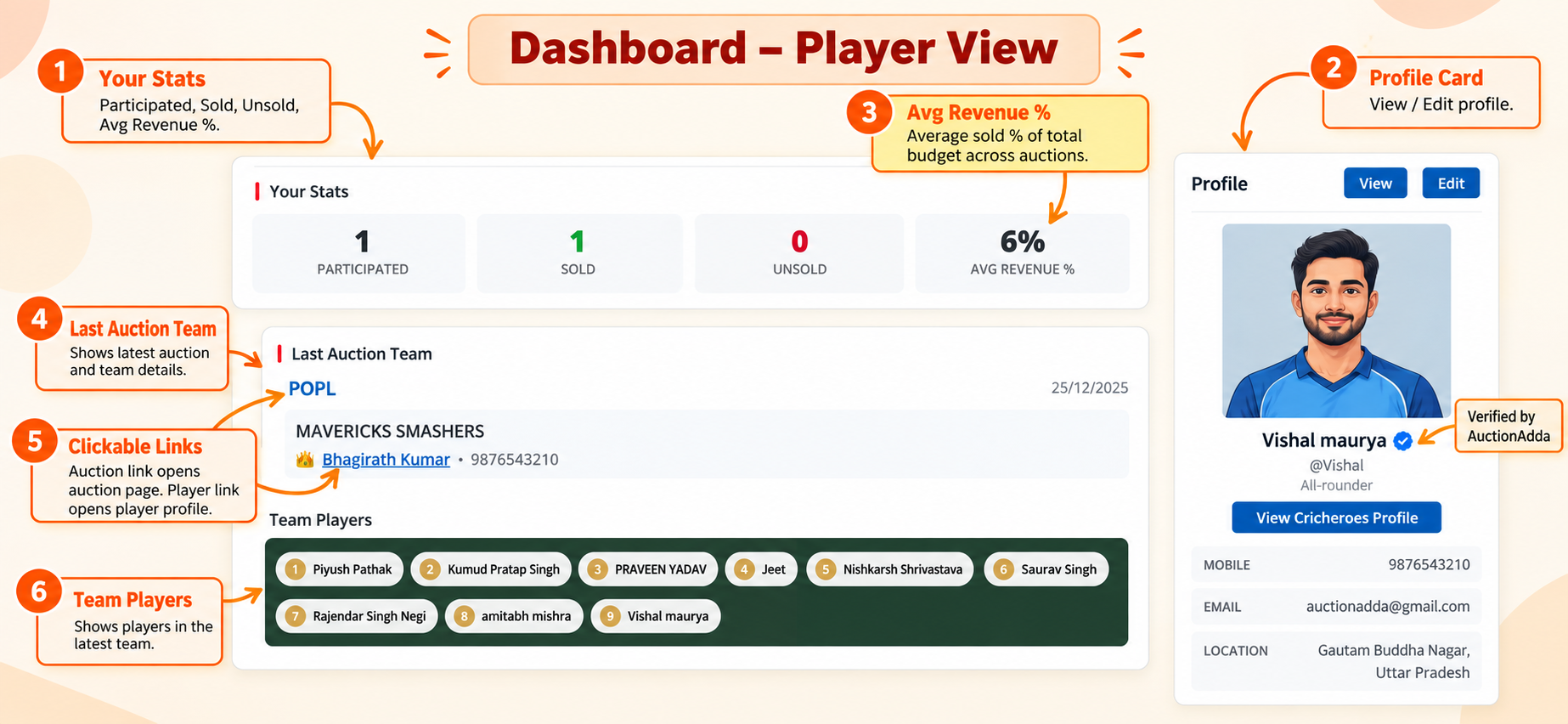
Figure 1: Dashboard Player View
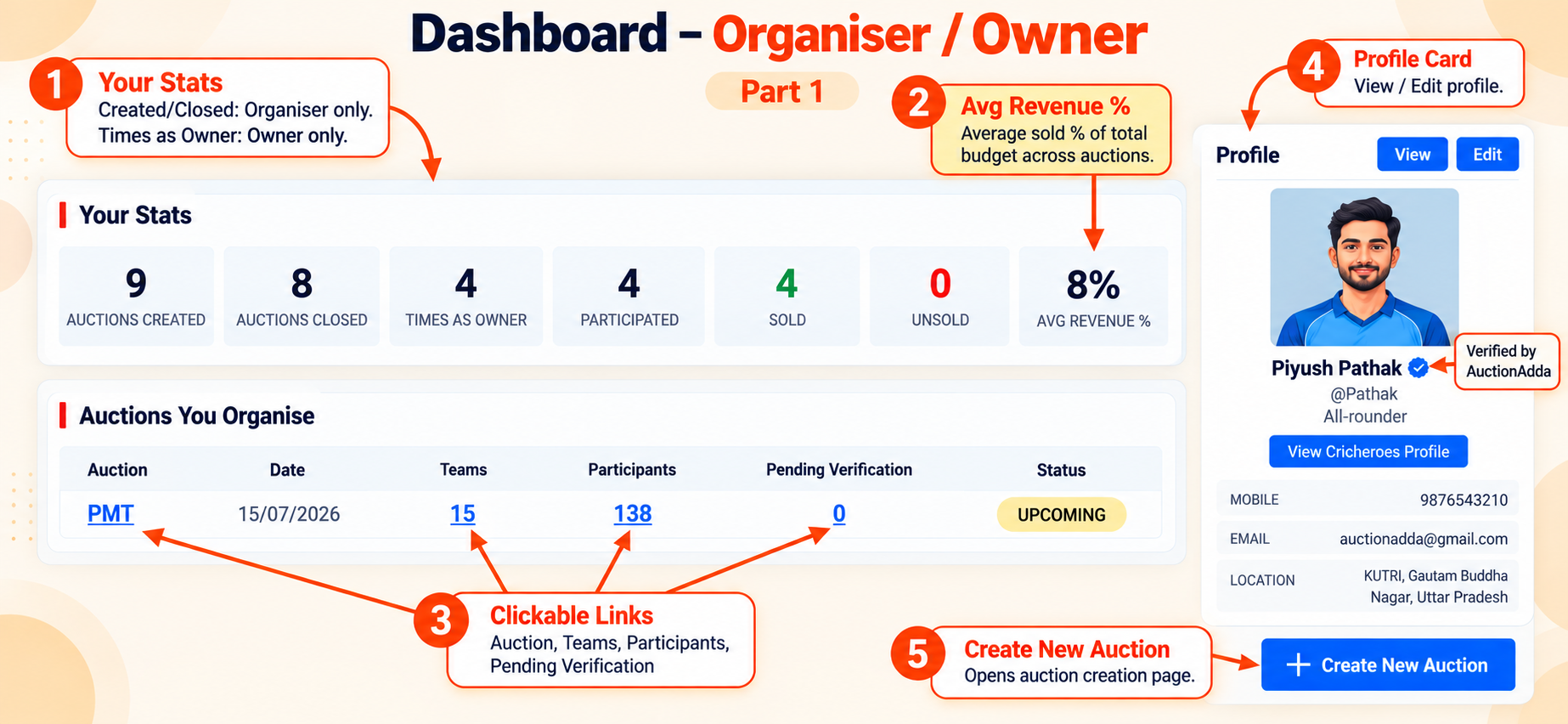
Figure 2: Dashboard Organiser/Owner View — Part 1
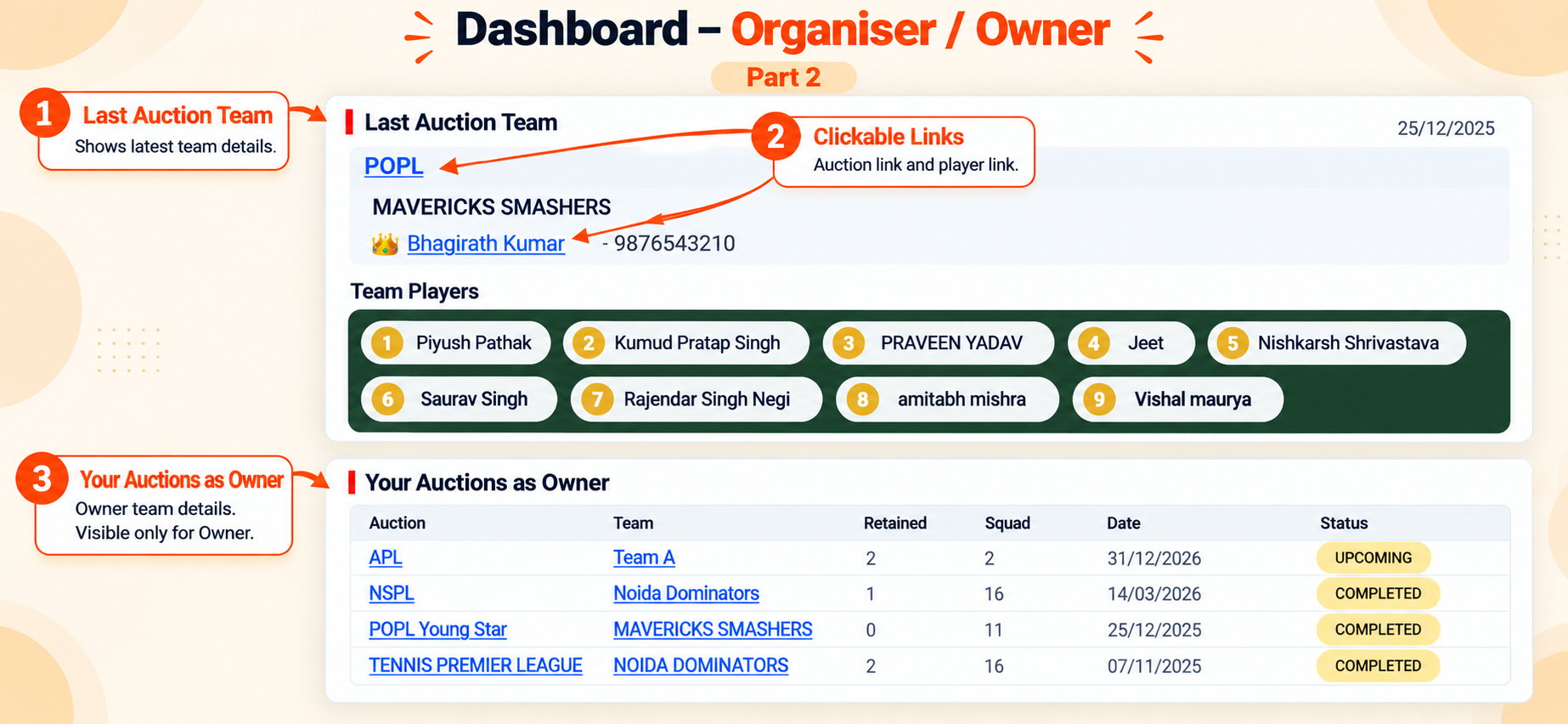
Figure 3: Dashboard Organiser/Owner View — Part 2
Auction Management
Manage and participate in cricket auctions from creation to completion. The auction process is divided into easy steps:
- Create Auction: Navigate to 'Create Auction' via the menu or Dashboard to get started.
- Basic Information: Upload your auction logo and fill in details like Season, Date, Time, and Location.
- Team & Bids: Set player limits per team, define the base bid, and configure multiple bid increments.
- Payment & Add-ons: Choose your team size (starts with 2 free teams) and select paid add-ons. See auction pricing for all plans. Complete the secure payment process.
- Edit Payment Info: After payment, edit your auction to set Player/Owner Registration Fees and upload payment QR codes.
- Share & Manage: Share Join links with players and owners, and use the Auction Panel or Overlay links for live streaming.
- Settings: Toggle Registration, Participant Lists, WhatsApp Notifications, Trial Modes, and Virtual Auction settings.
- Assign Co-organiser: Click the 'Assign Co-organiser' icon on the auction card to search and add a registered player as a co-organiser. You can also remove them anytime.
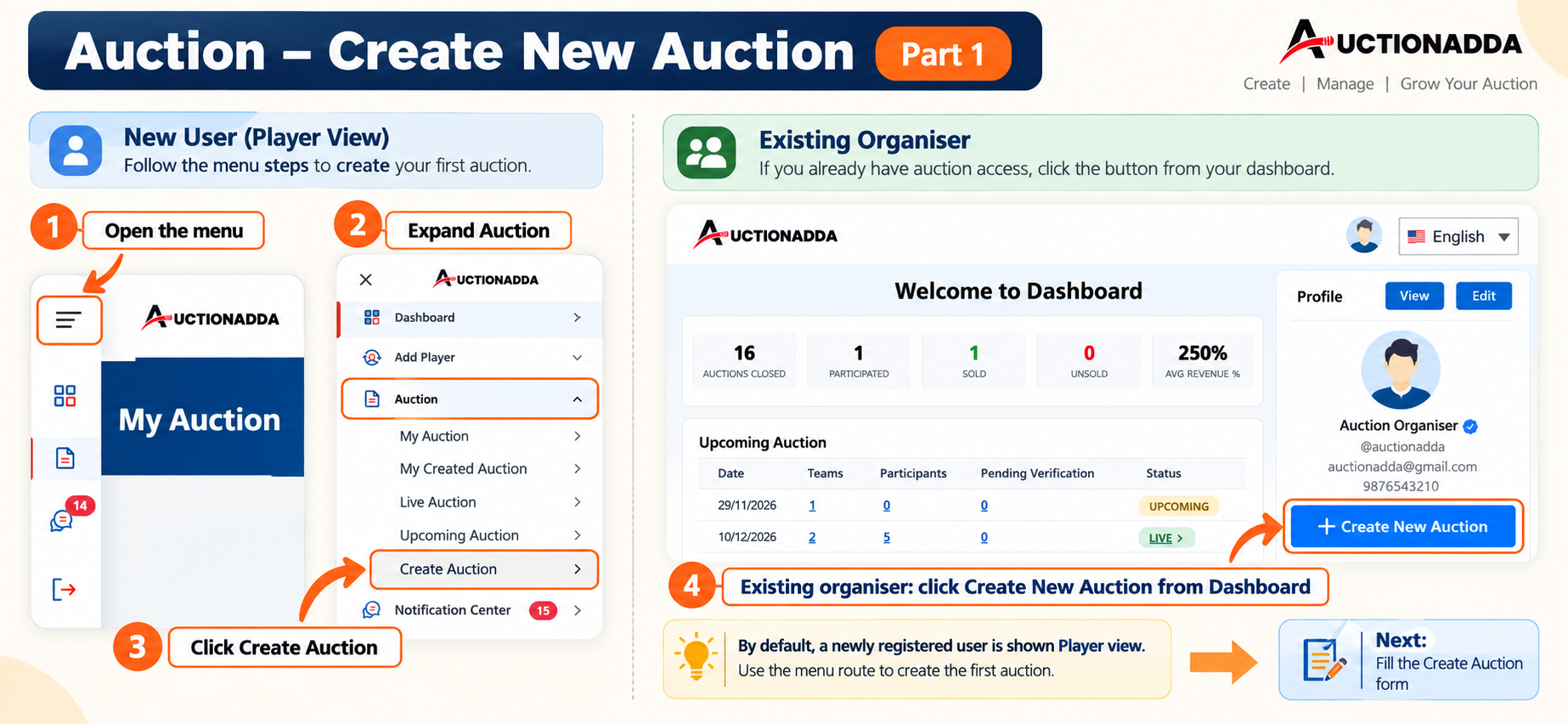
Figure 1: Navigate to 'Create Auction' from the menu (New User) or Dashboard (Existing Organiser).
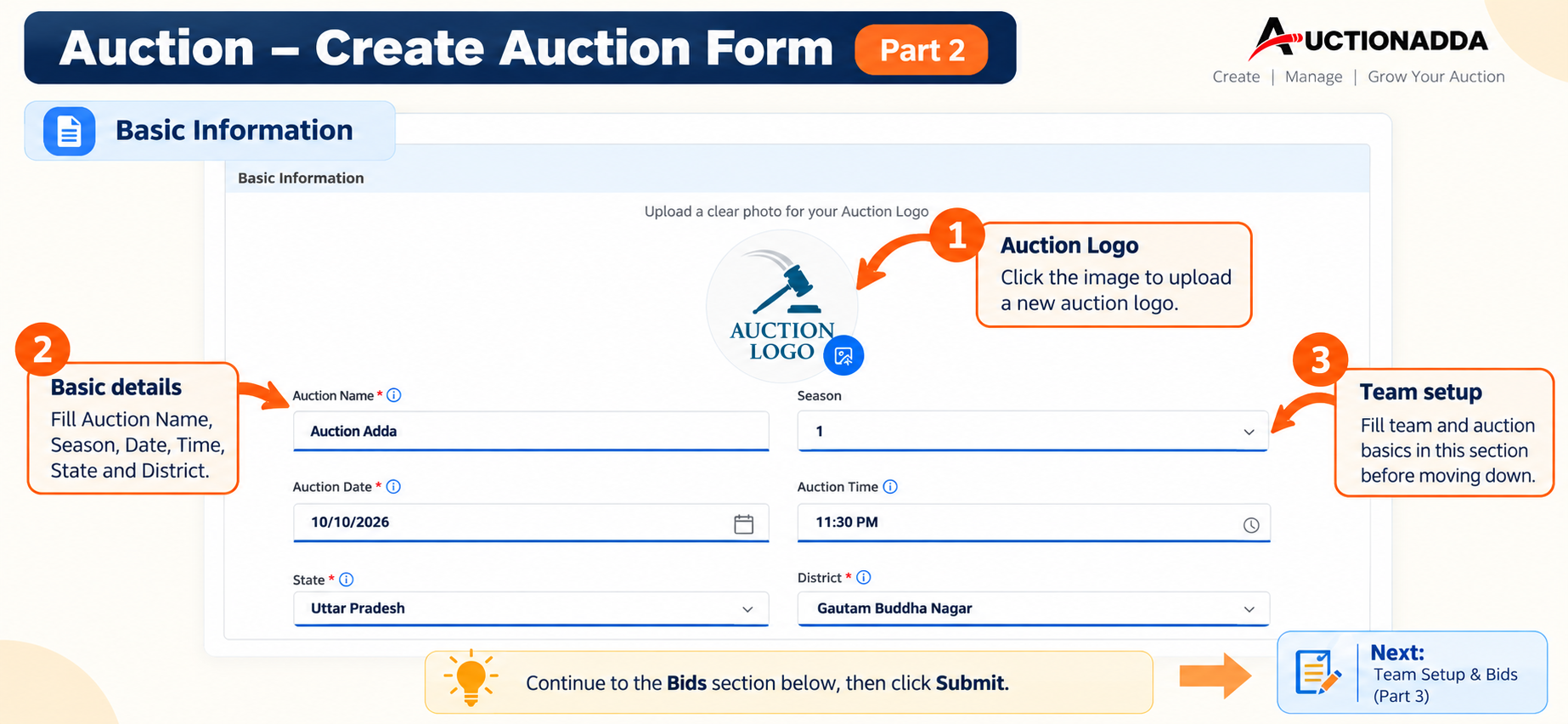
Figure 2: Fill in Basic Information including Auction Logo, Name, Season, Date, Time, and Location.
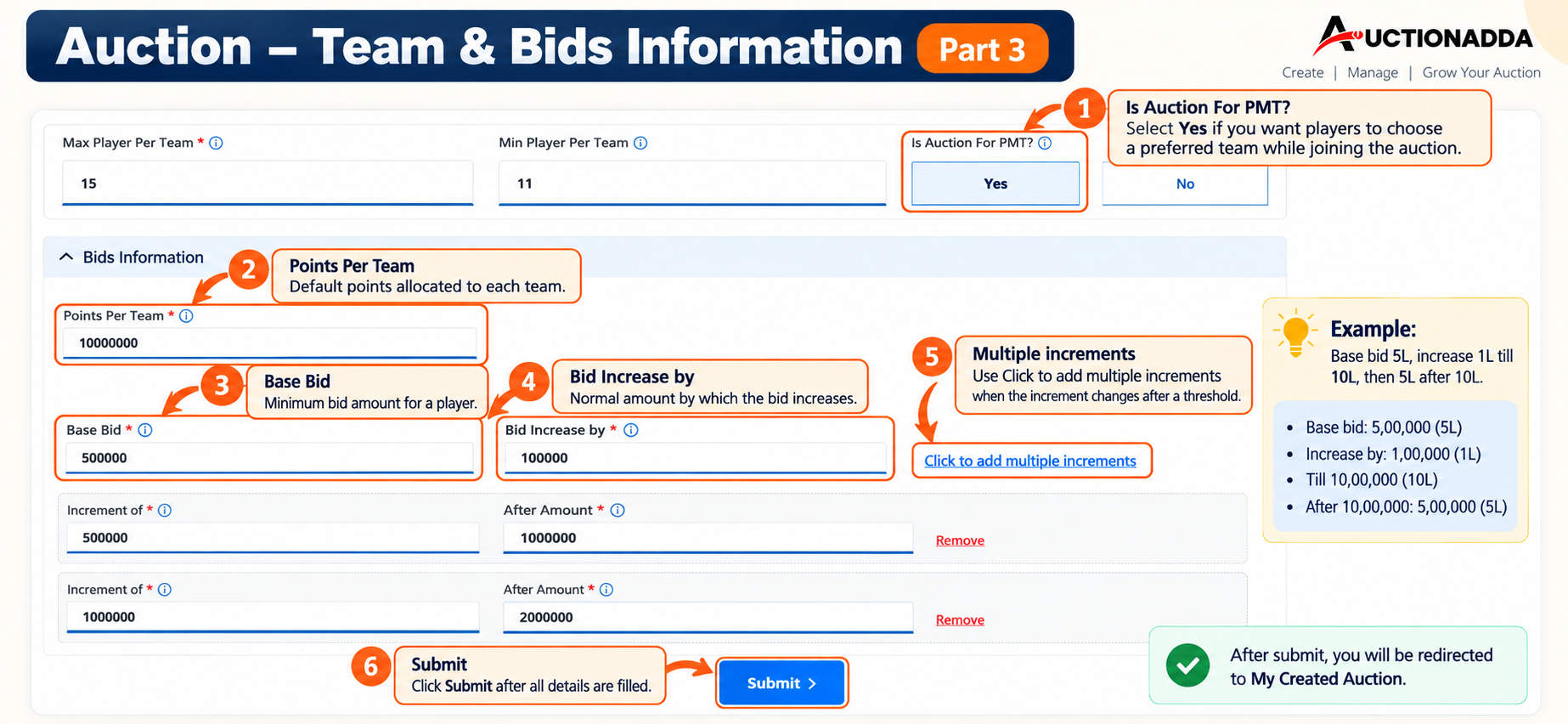
Figure 3: Configure Team & Bids Information — set player limits, base bid, and multiple bid increments.
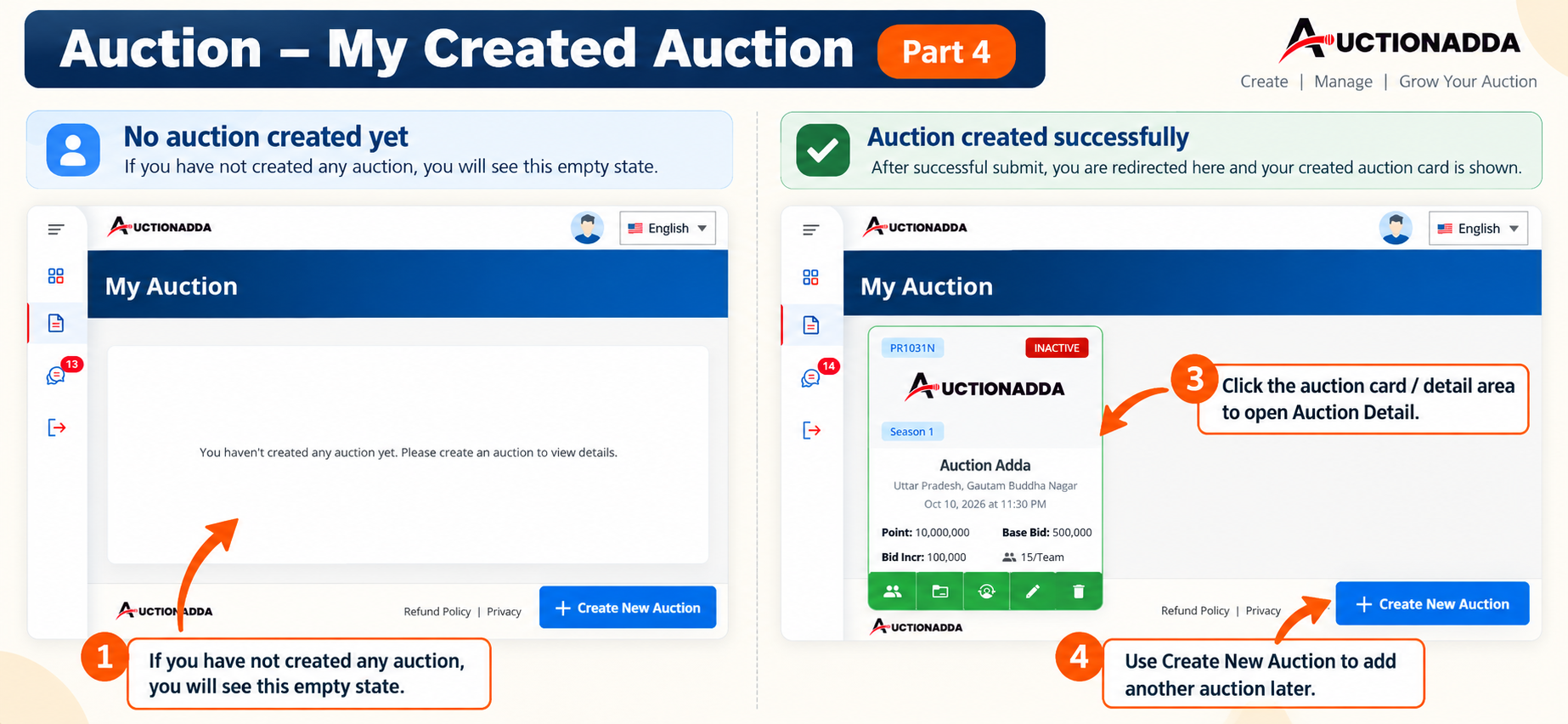
Figure 4: View your created auction in 'My Auction'. Click the auction card to open its details.
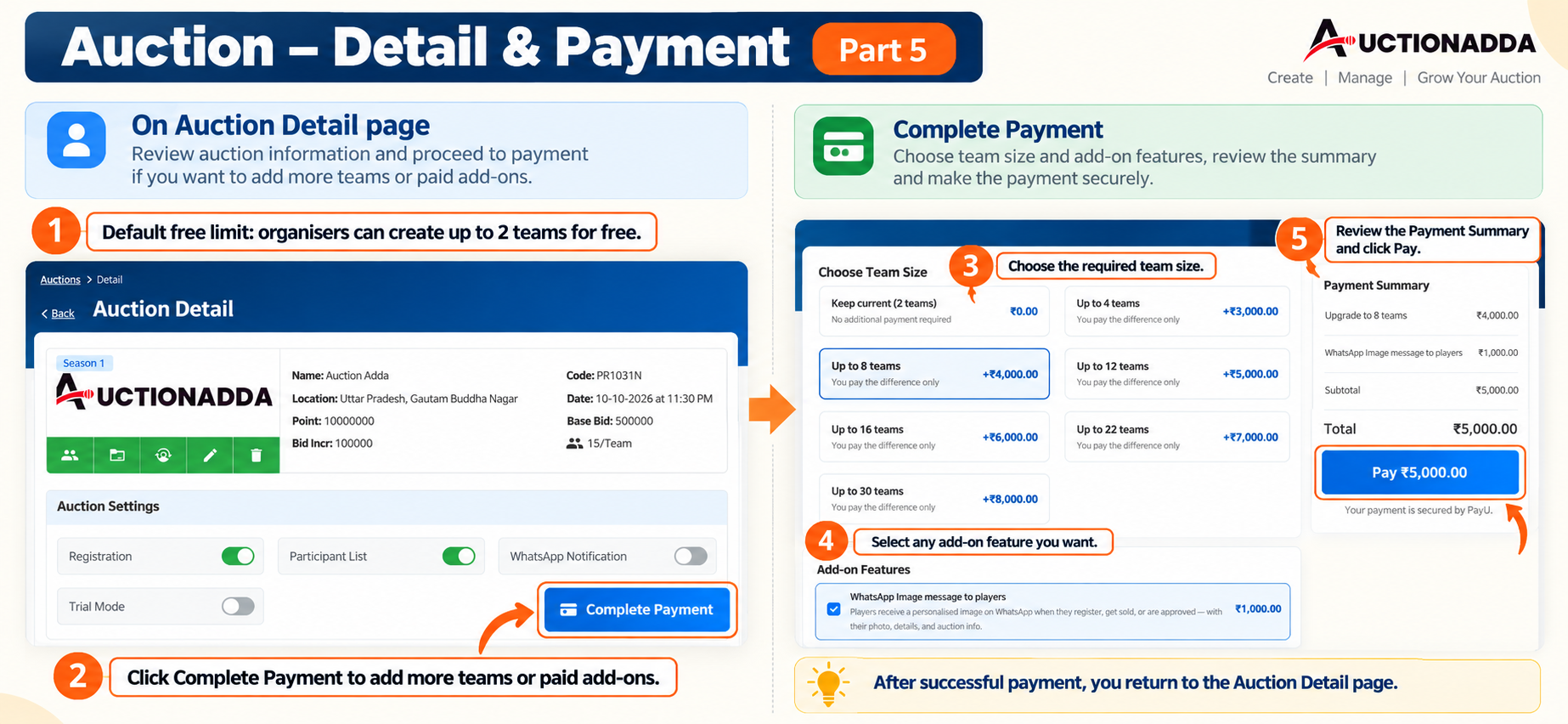
Figure 5: Review Auction Details and click 'Complete Payment' to choose team sizes and add-on features.
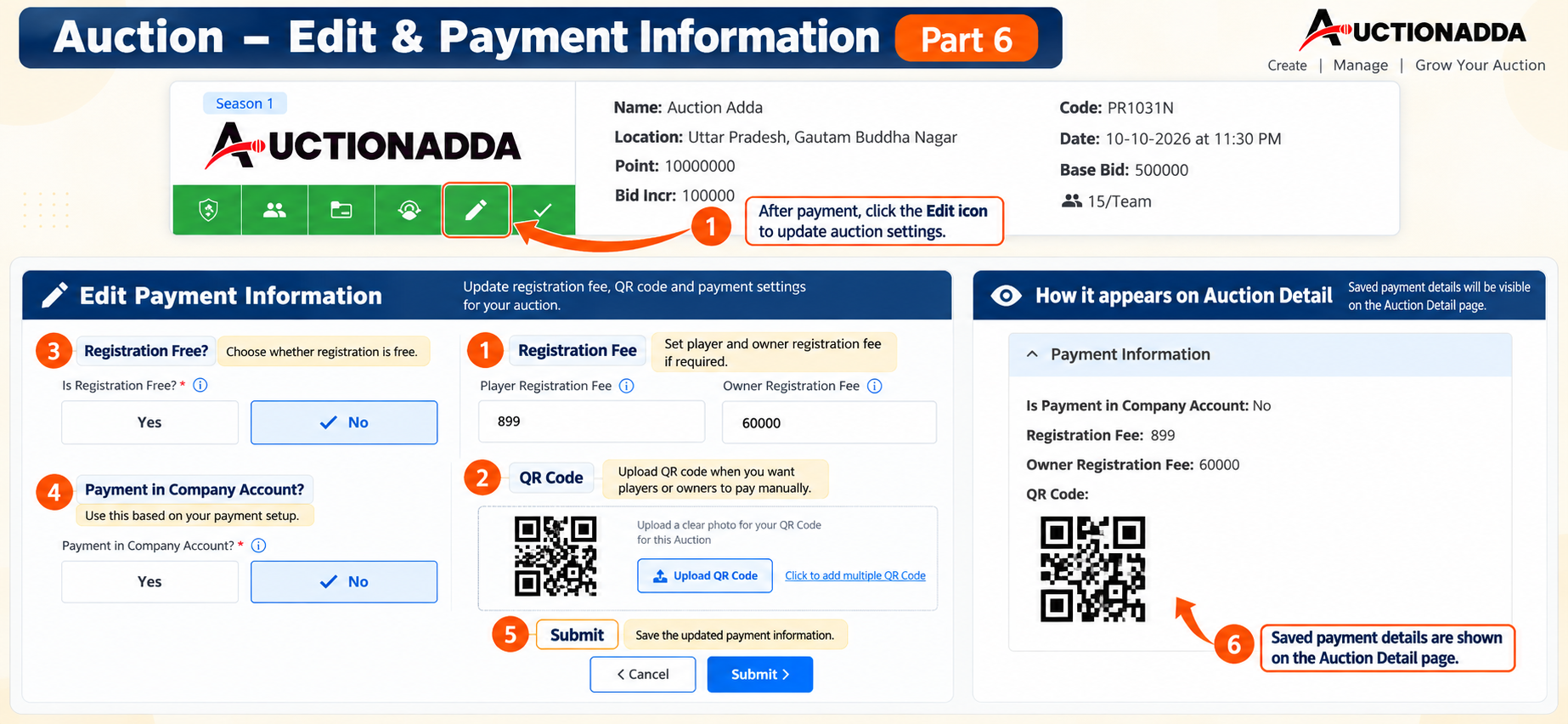
Figure 6: Click the Edit icon to update Payment Information, including Registration Fees and QR Codes.
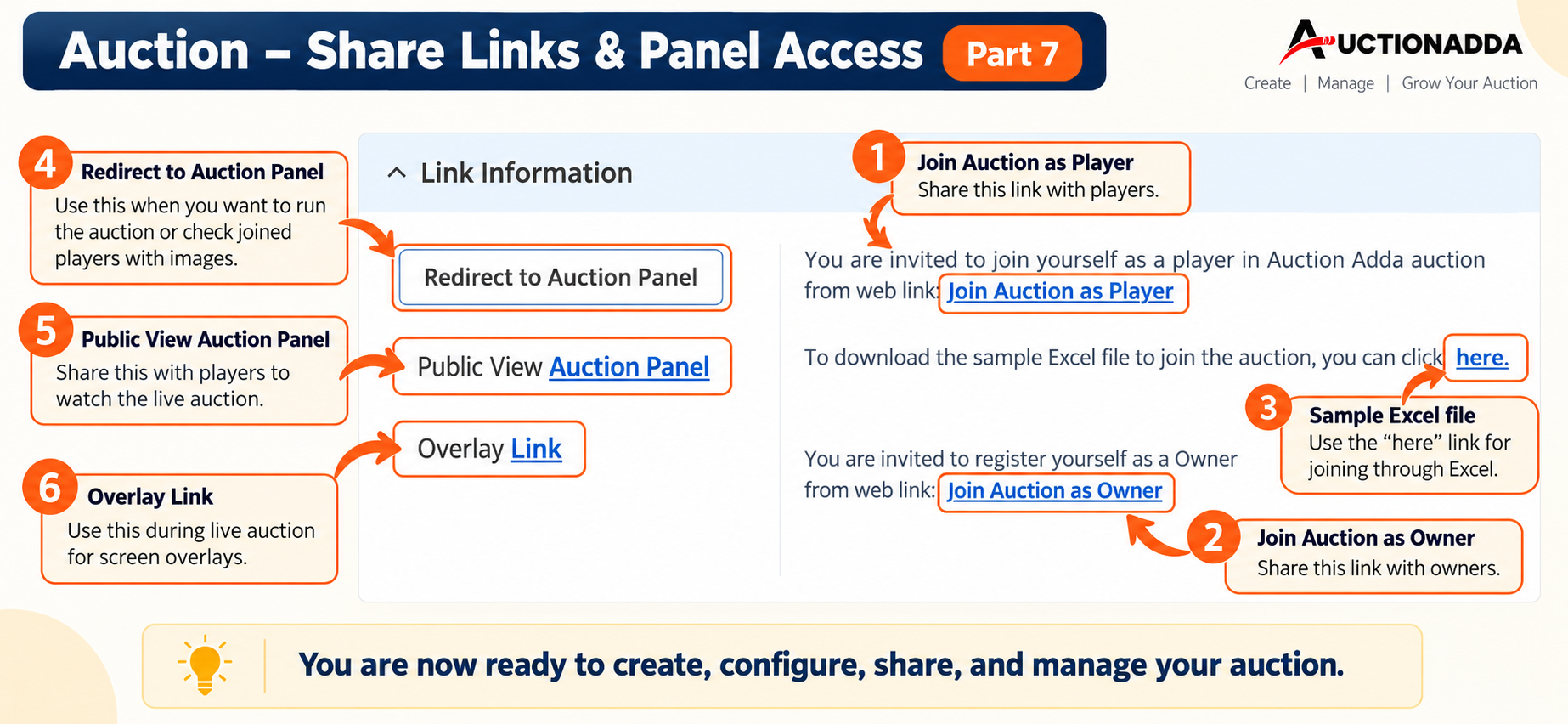
Figure 7: Share the Player and Owner Join Links, download the sample Excel file, and copy the Overlay Link.
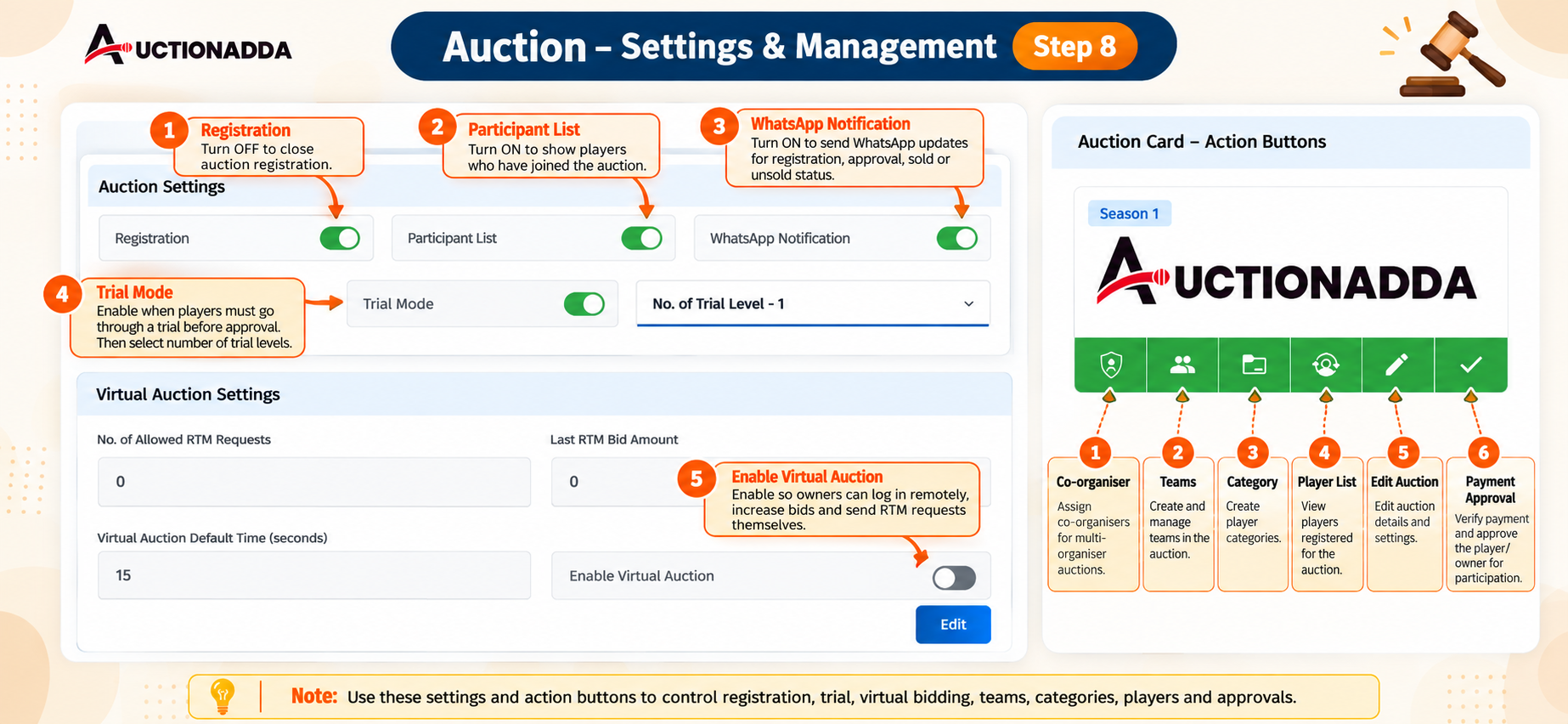
Figure 8: Manage Auction Settings and use Action Buttons for Teams, Categories, and Payments.
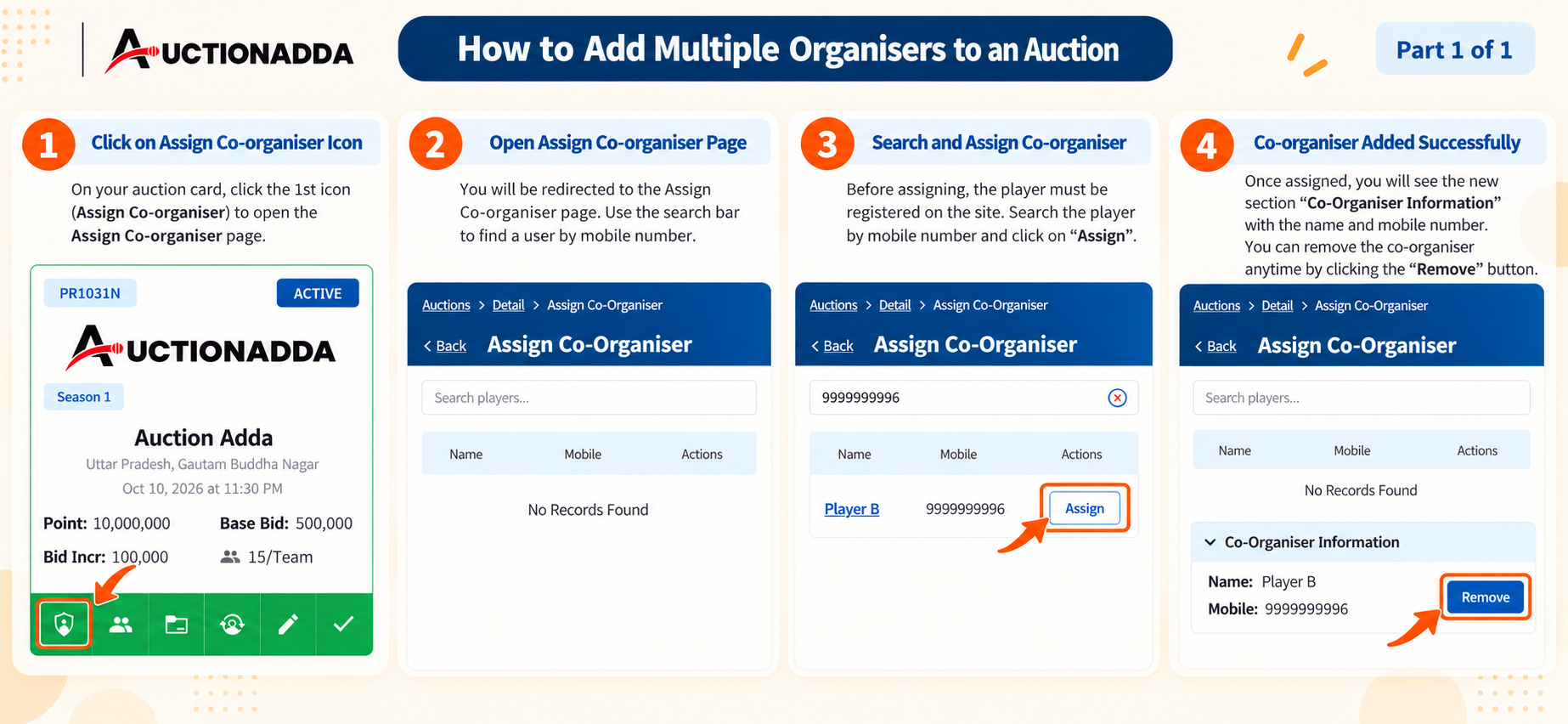
Figure 9: Add multiple Co-organisers — search by mobile number, click 'Assign', and manage from the Co-Organiser Information section.
Managing Your Team
Create and manage franchises or teams for your auction. Define team names, logos, and assign owners or co-owners.
- Create Team: Navigate to the Teams page from your Auction Card and click 'Create New Team'.
- Team Details: Upload a team logo, enter the Team Name, Short Name (visible during the auction), and select a Shortcut Key.
- Owner Registration: Share the Owner Registration link. Owners can register themselves and make the required payment.
- Assign Owner: Once an owner has joined, click the 'Assign Owner' icon on the team card, search for the player, and click 'Assign'.
- Manage Owners: Teams can have multiple owners. The first assigned owner becomes the Primary Owner, and others are added as Co-Owners. You can view, edit, or remove them from the Team Detail page.
- Retain Players: Click the 'Retain Players' icon (1st icon) on the team card. Select a verified player from the list, click 'Retain', and enter a retain price if applicable. The player receives a WhatsApp confirmation, and their status updates. Click 'Team Players' to view only the retained players for that team.
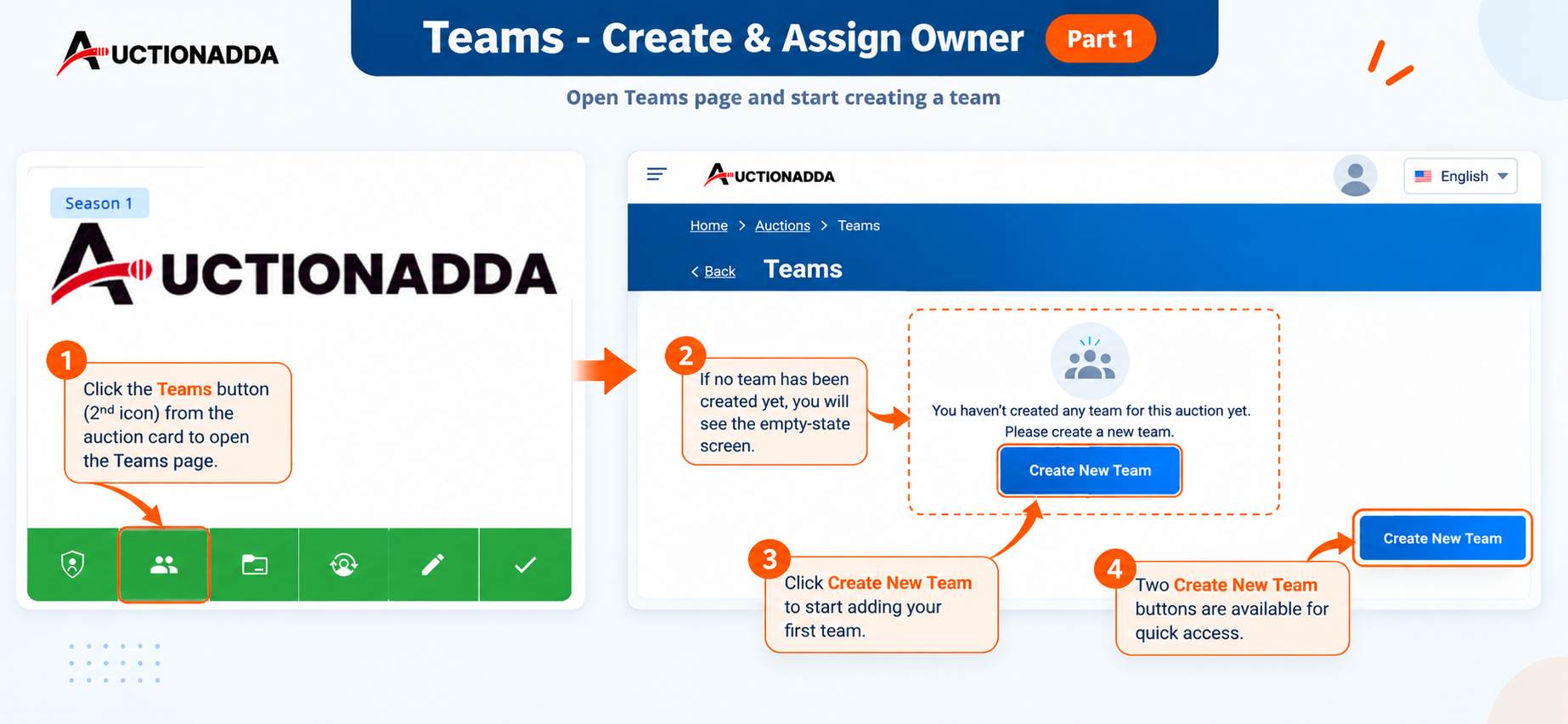
Figure 1: Click the 'Teams' button from the auction card to open the Teams page.
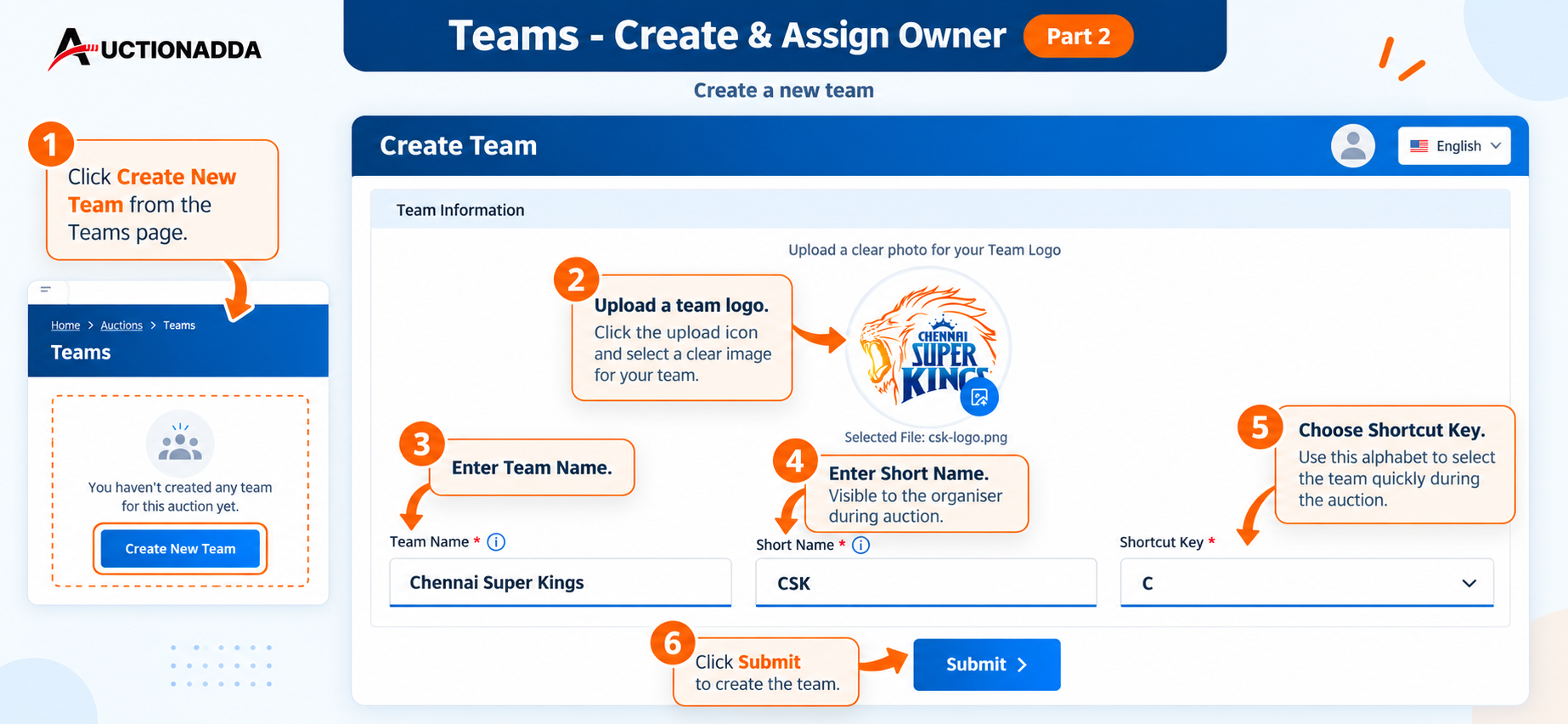
Figure 2: Fill in the Create Team form — upload a logo, enter Team Name, Short Name, and choose a Shortcut Key.
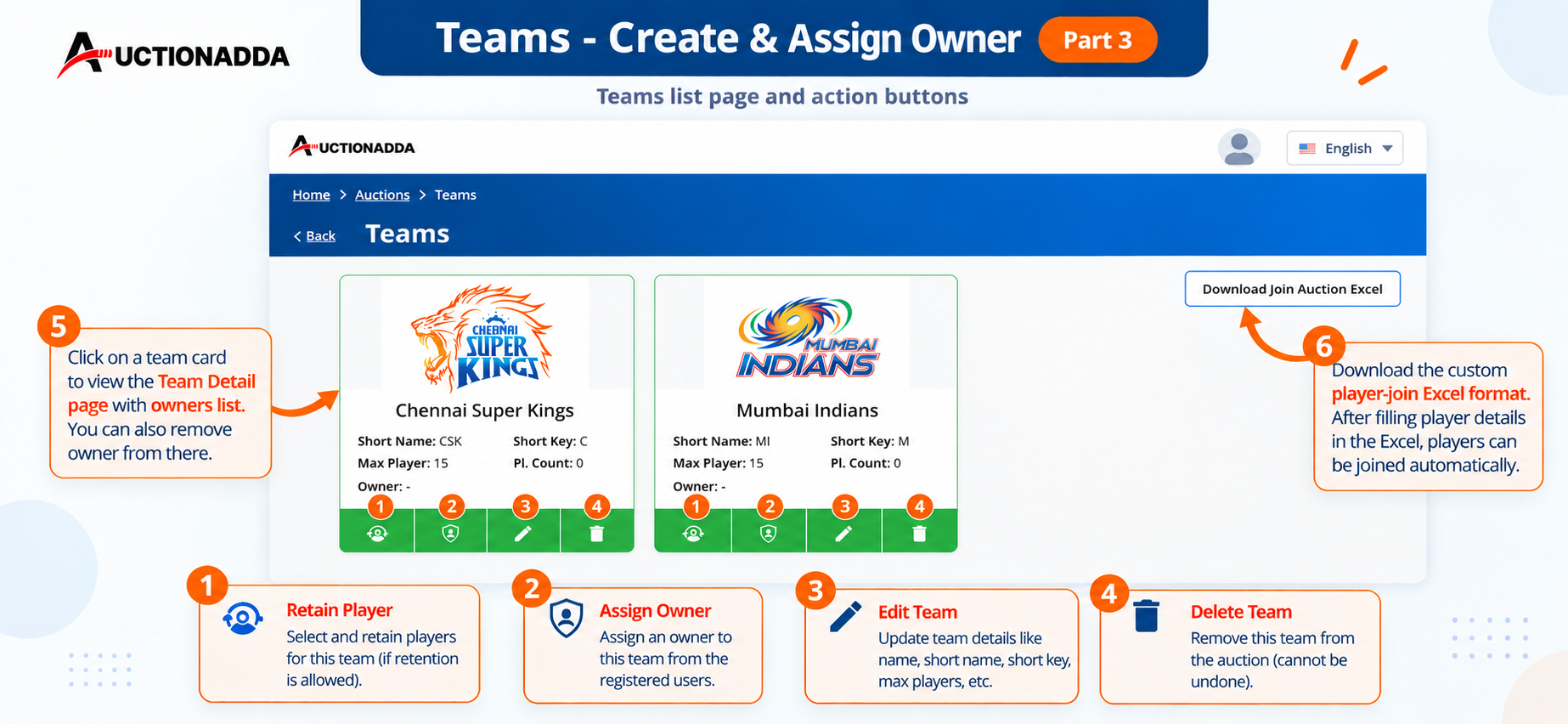
Figure 3: View the Teams list and use action buttons for Retain Player, Assign Owner, Edit, or Delete.
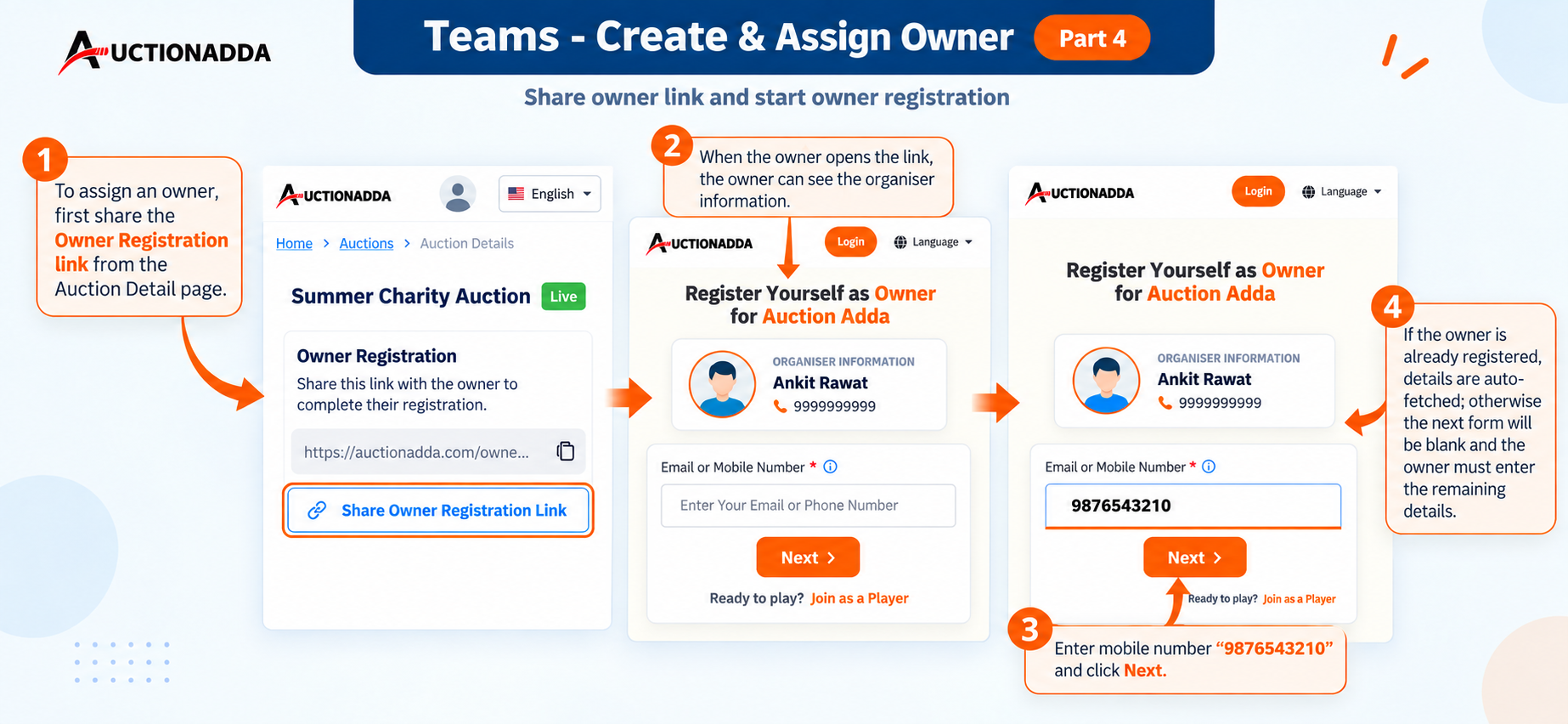
Figure 4: Share the Owner Registration link. The owner enters their mobile number to auto-fetch existing details or register.
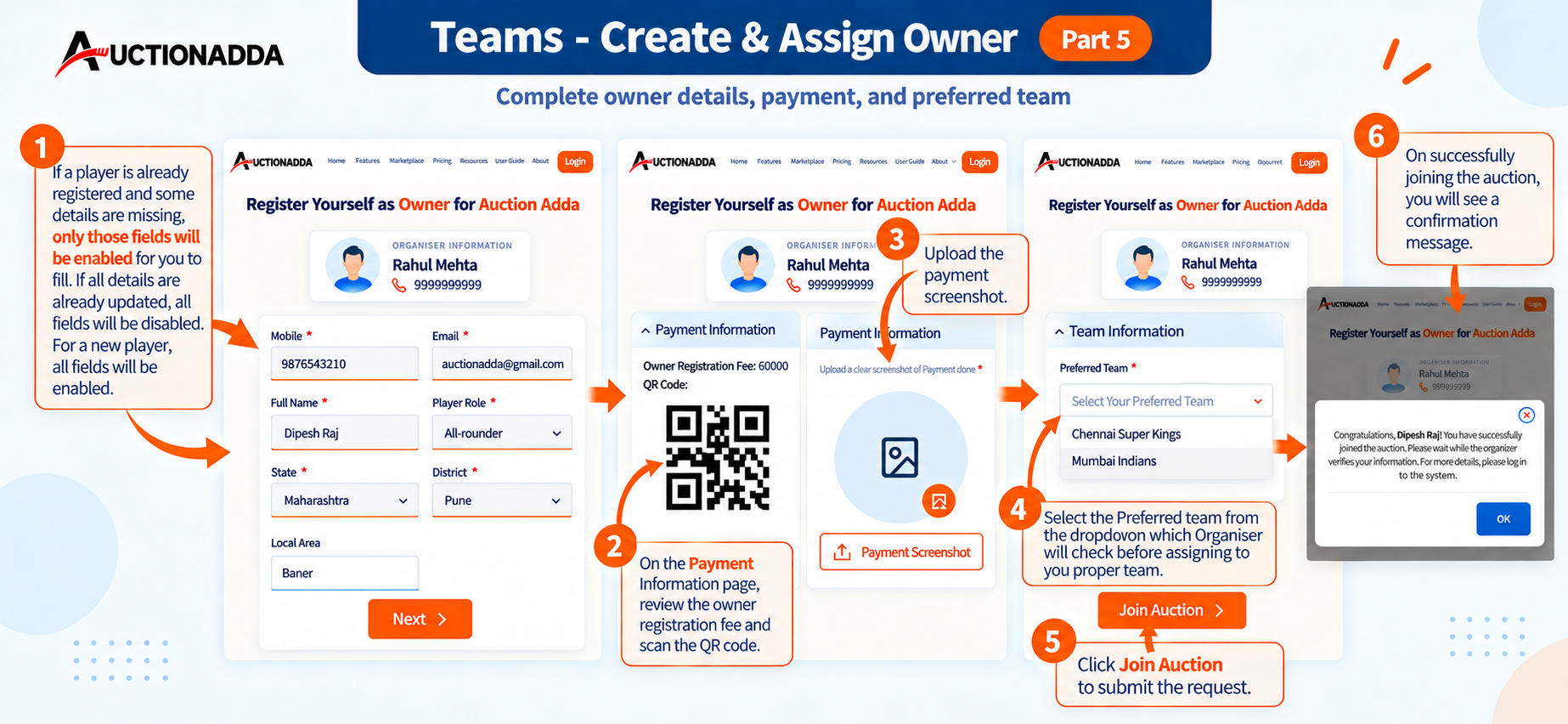
Figure 5: Owner completes registration by verifying details, making payment via QR code, and selecting Preferred Team.
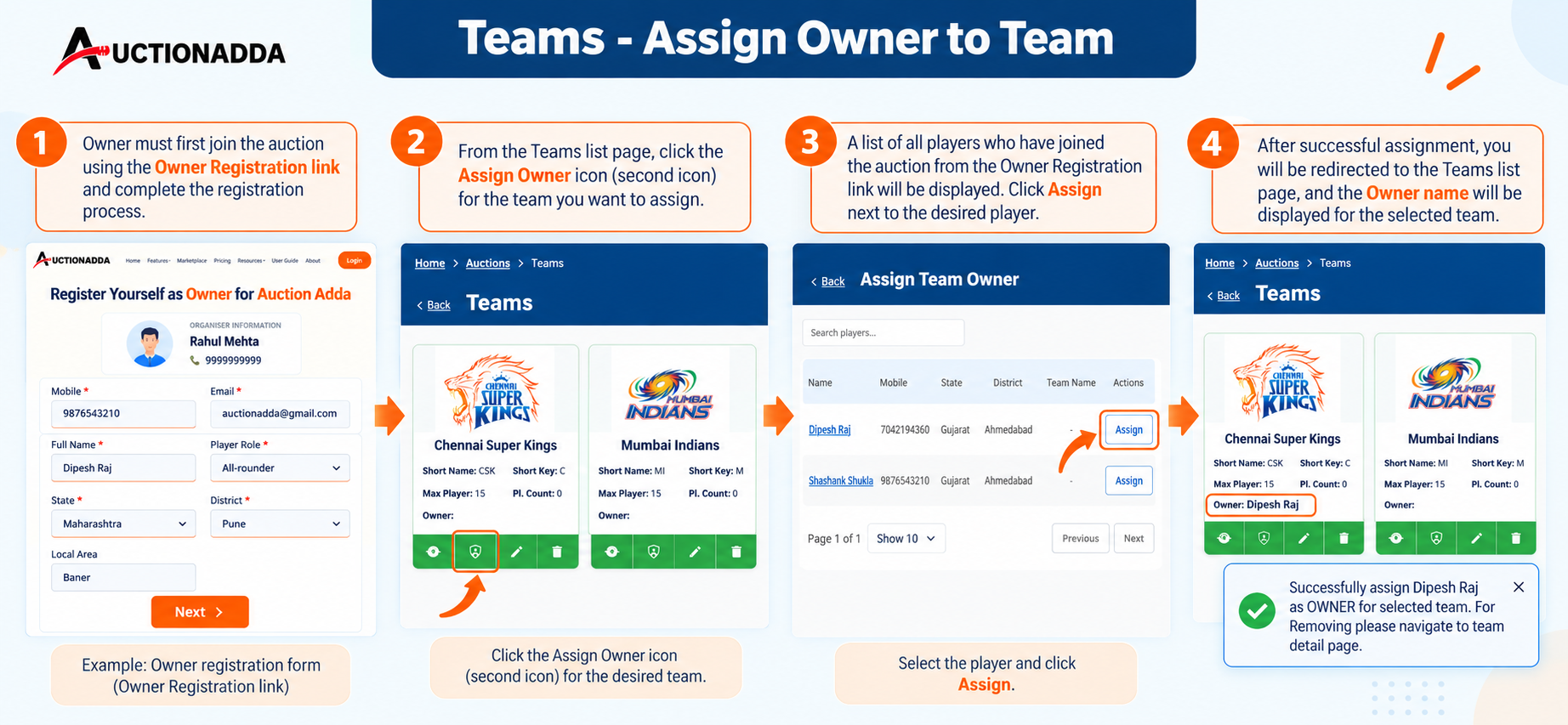
Figure 6: Assign the owner to a team — click 'Assign Owner', search for the joined player, and click 'Assign'.
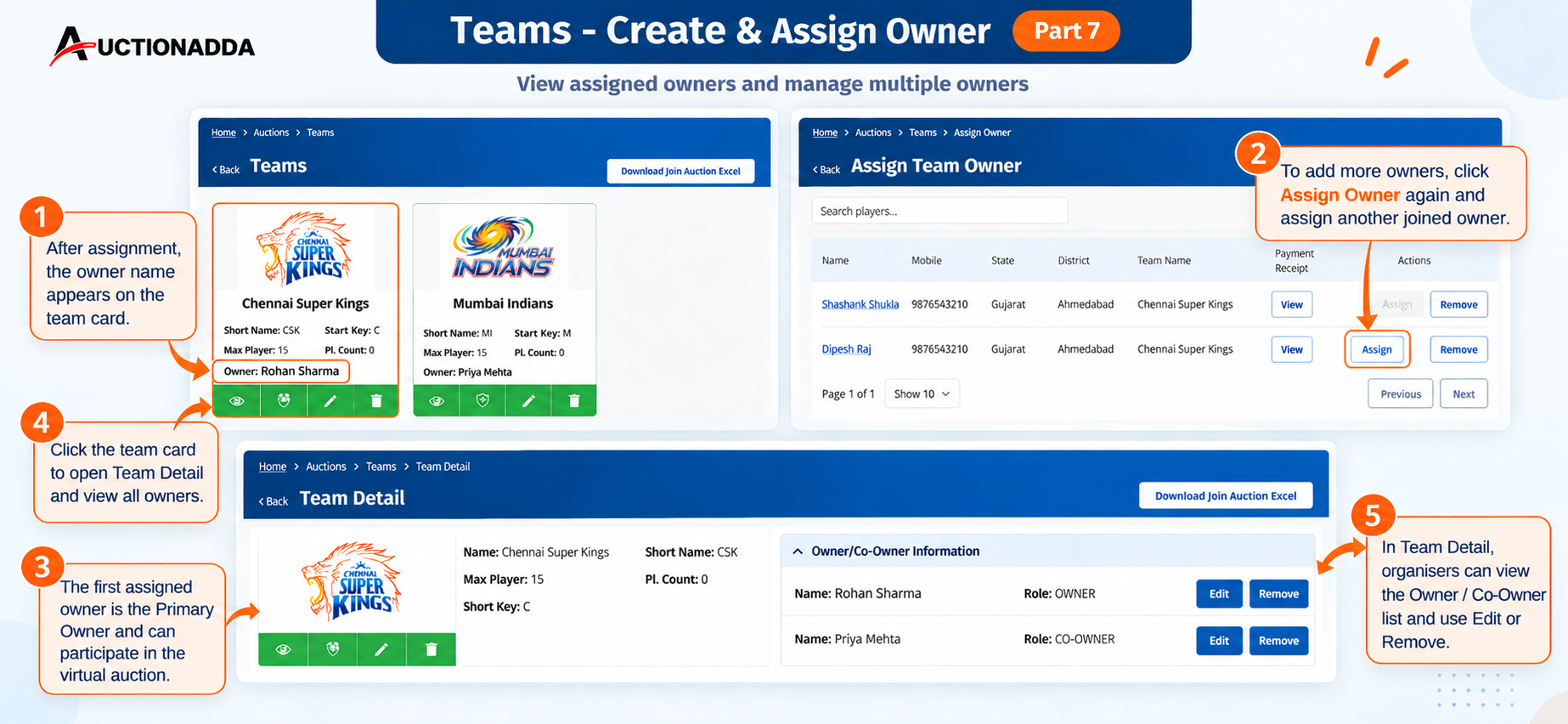
Figure 7: View assigned owners on the team card. Click the team card to manage Primary Owners and Co-Owners.
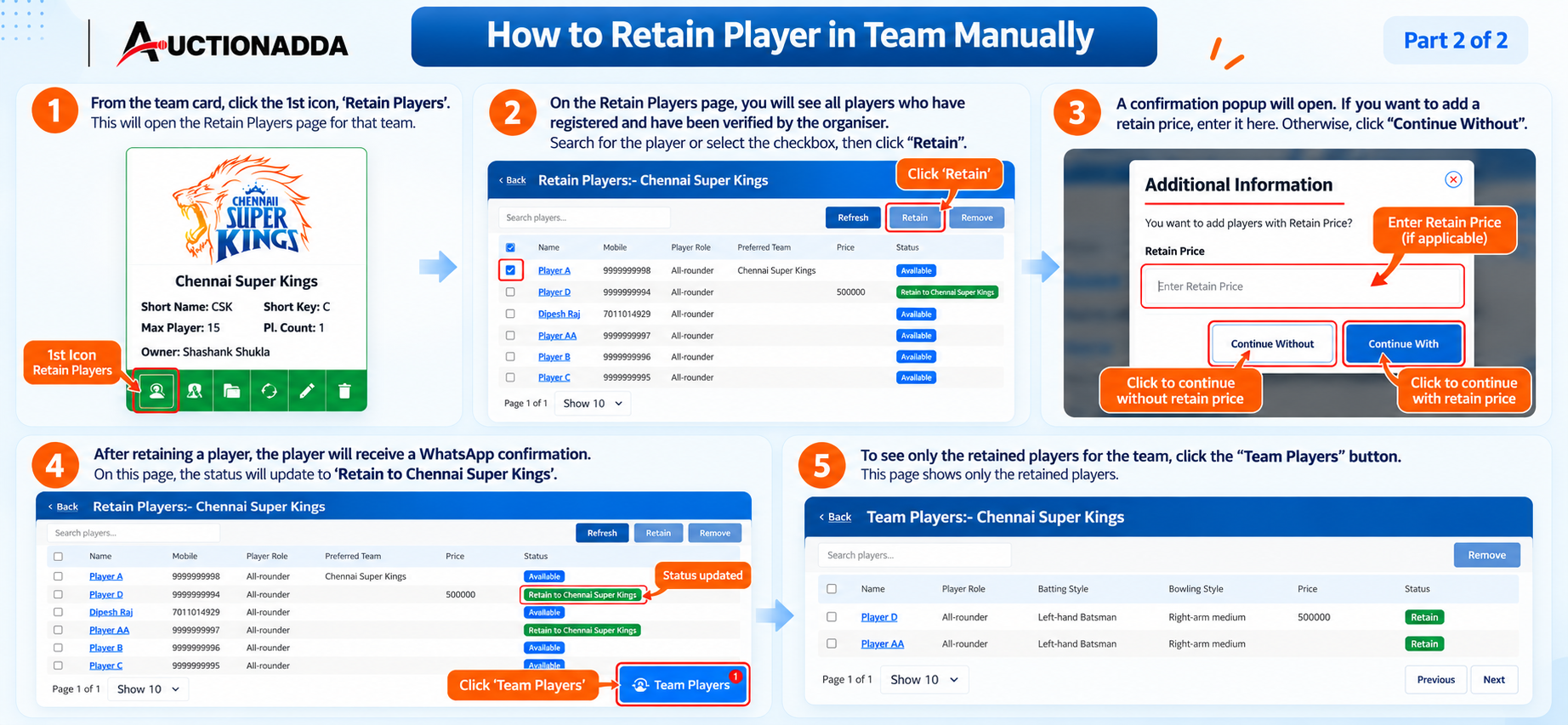
Figure 8: Retain Players manually — select the player, set a retain price (if applicable), and view the final retained list.
Categories
Organisers can create multiple categories for an auction and assign specific players to each category.
- Access Categories: From the auction card, click the 3rd icon (Categories) to open the Categories page.
- Create Category: Click 'Create Category' and fill in the Category Name, Base Bid, Bid Increase, and player limits. Click Submit.
- Assign Players: On the category card, click the 'Assign Player to Category' icon (1st icon). Select the desired players from the list and click 'Add'.
- View Category Players: Click the 'Category Players' button to view only the players assigned to that specific category.
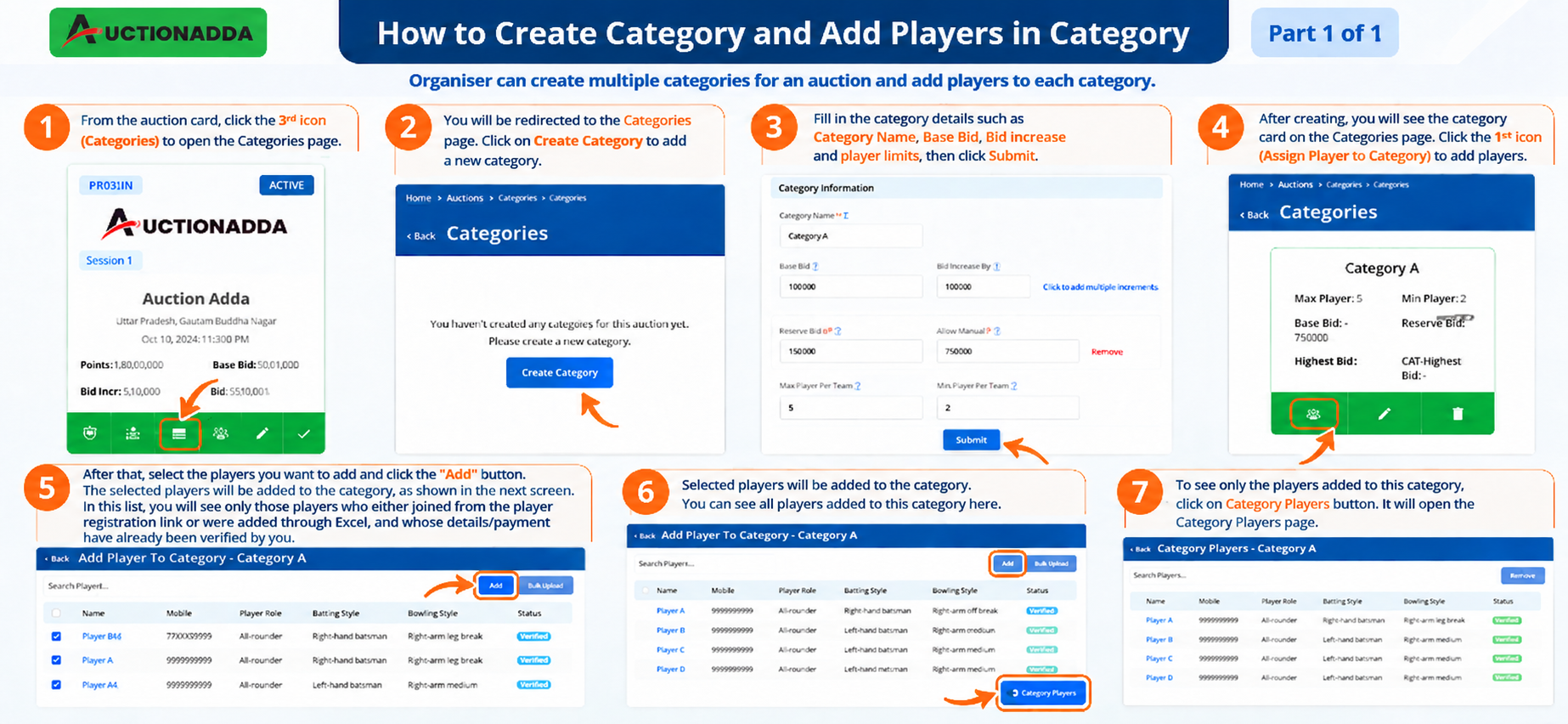
Figure 1: Complete workflow for creating a category and assigning players.
Player Profiles
Comprehensive player management for your auction. You can add players using two different methods:
- Method 1 — Direct Join & Approval: Share the 'Join Auction as Player' link with players. They register, pay the fee, and upload a payment screenshot. The organiser then verifies the payment and approves the player from the 'Verify Payment' page.
- Method 2 — Bulk Excel Upload: Download the sample Excel file from the Link Information section, fill in the player details in the predefined format, and upload it via the 'Add Player By Excel' button on the Auction Participants page.
- Check Status & Errors: Use the 'Excel Players Status' button to track pending uploads, review errors (like invalid emails or preferred team issues), and restart failed uploads.
- Manual Additions & Approvals: Add missing players manually via 'Add Player To Auction'. If a player shows 'Payment Confirmed, Pending Approval', select them and click 'Approve'.
- Image View: Click 'Show In Image View' to see all players with their photos and base details in a visual grid. Learn more about player management features.
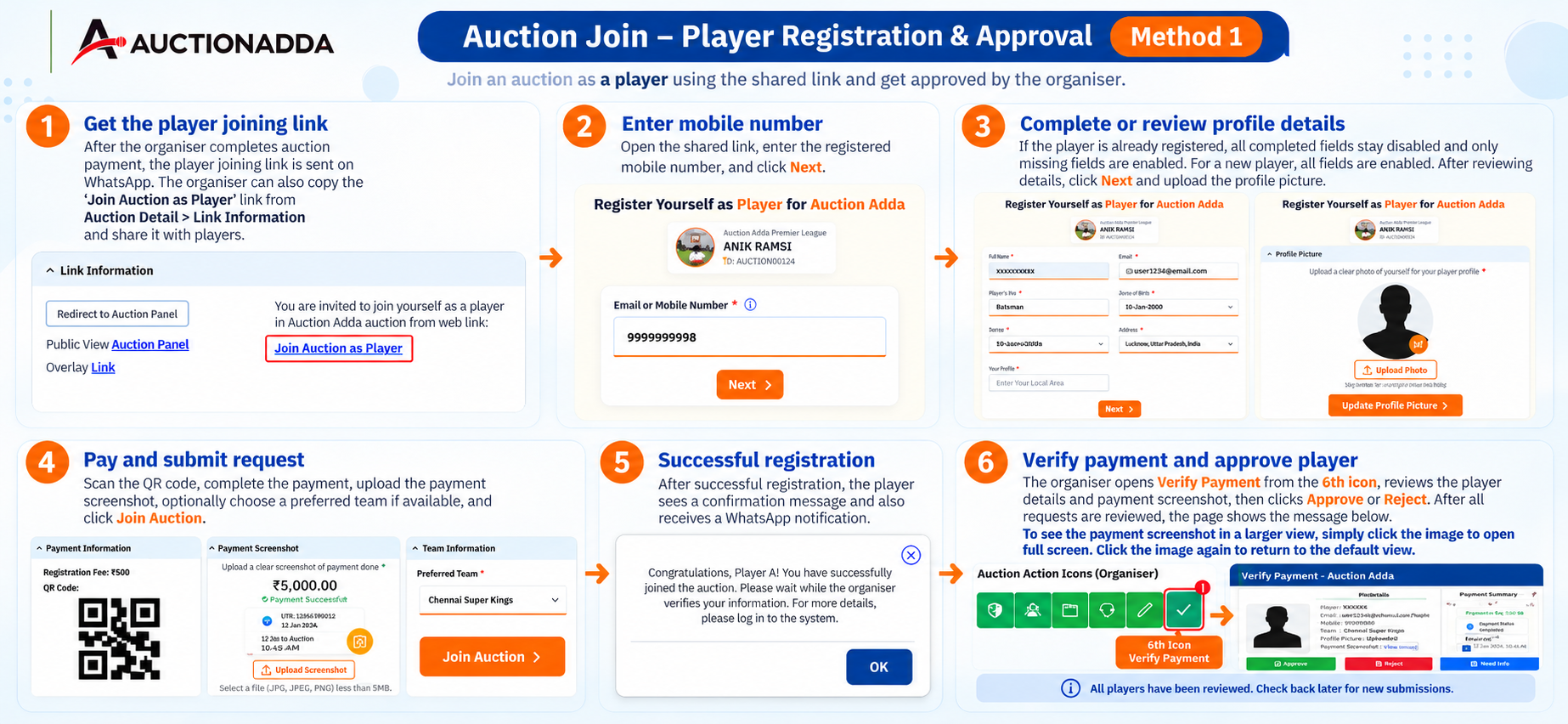
Figure 1: Method 1 — Player joins via link, completes registration/payment, and the organiser verifies and approves.
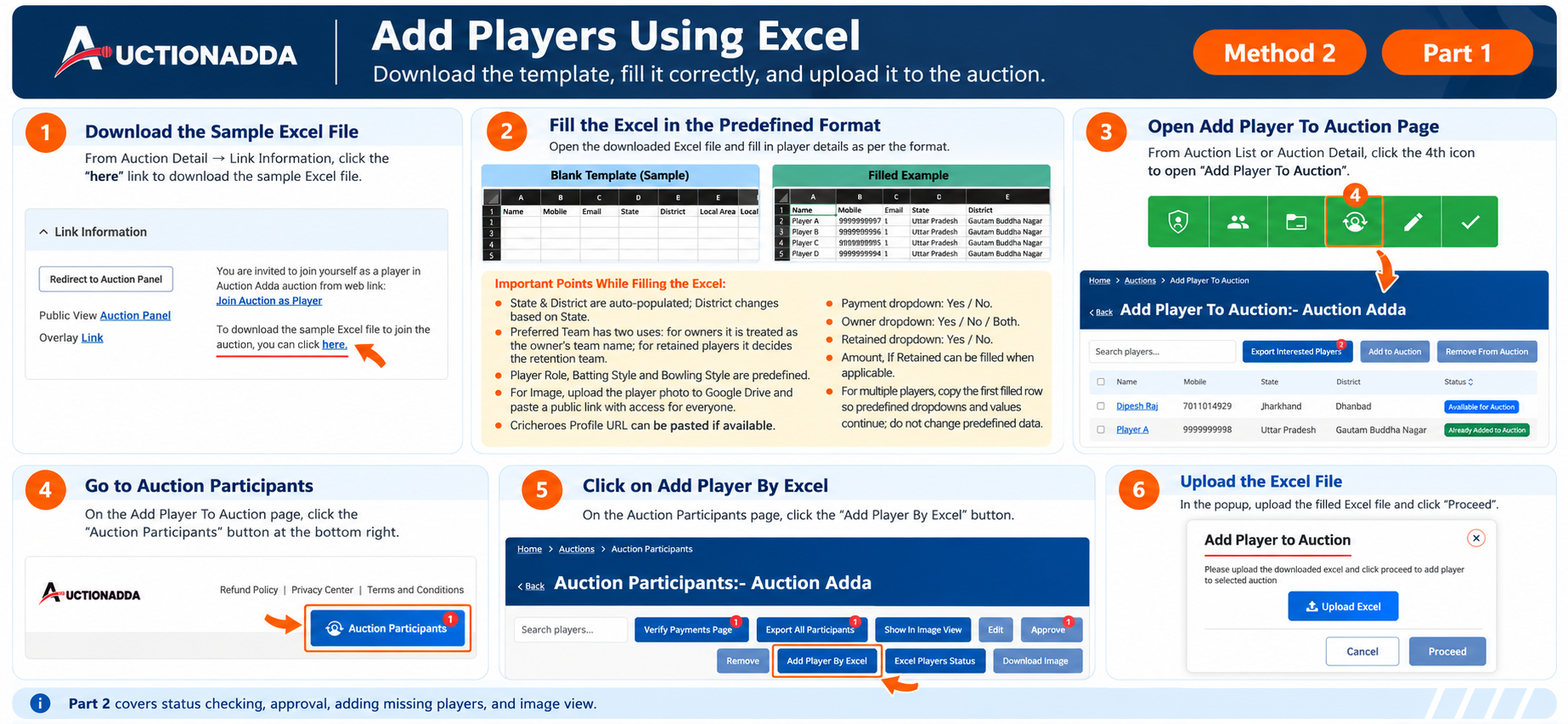
Figure 2: Method 2 (Part 1) — Download the sample Excel, fill in player details, and upload via 'Add Player By Excel'.
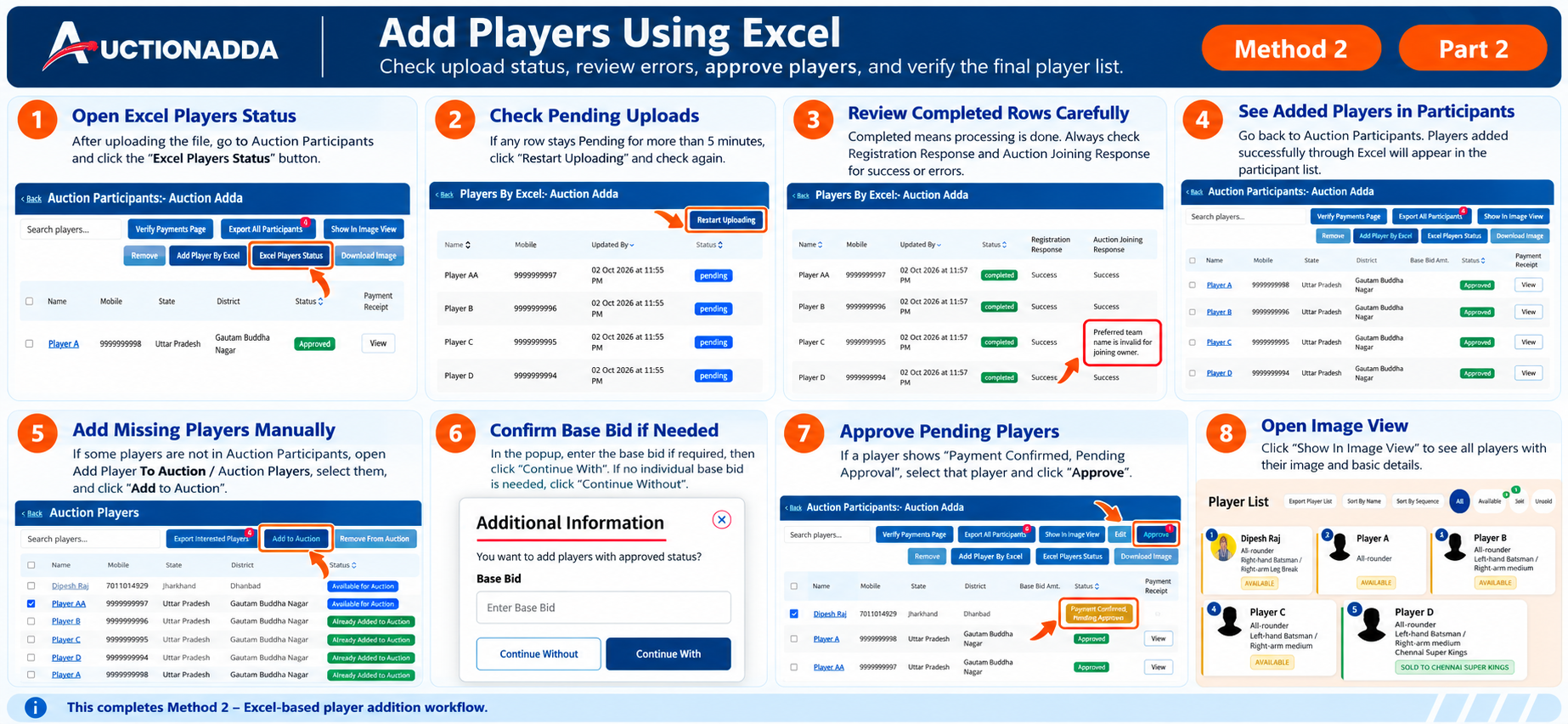
Figure 3: Method 2 (Part 2) — Check upload status, review errors, add missing players, and approve pending players.
Auction Panel Operations
The Auction Panel is the control center for running and viewing live auctions. Available features depend on your role.
- Organiser View: Full control to manage bidding, view teams, categories, and access advanced features.
- Opening the Panel: Go to 'My Auction', click the auction card, scroll to 'Link Information', and click 'Redirect to Auction Panel'. Use the bottom buttons (A, S, P, C, M, F) to navigate.
- Views: Click 'S' for Team Summary, 'P' for Player List, and 'C' for Category Summary.
- Advanced Features: Use the hamburger menu for Booster, Penalty, Break Time, and RTM Count. Learn more about RTM auction features.
- Manage Features: Click 'M' to access Update Points, Reset, Reauction of Unsold, Reports, Team Owners, Team List, Player Order, Mode (Trial/Live), and auction settings.
- Owner/Player View: A limited view for team owners and players to track the auction.
- Opening the Panel: Log in, go to 'Your Auctions as Owner' on the Dashboard, click the auction name, and click 'Redirect to Auction Panel'.
- Views: Use the S, P, and C buttons to view Team Summary, Player List, and Category Summary.
- Manage Features: Click 'M' to access Team Owners, Auction Detail Site, and Team List. Limited options like RTM Count and Break Time are available in the hamburger menu.
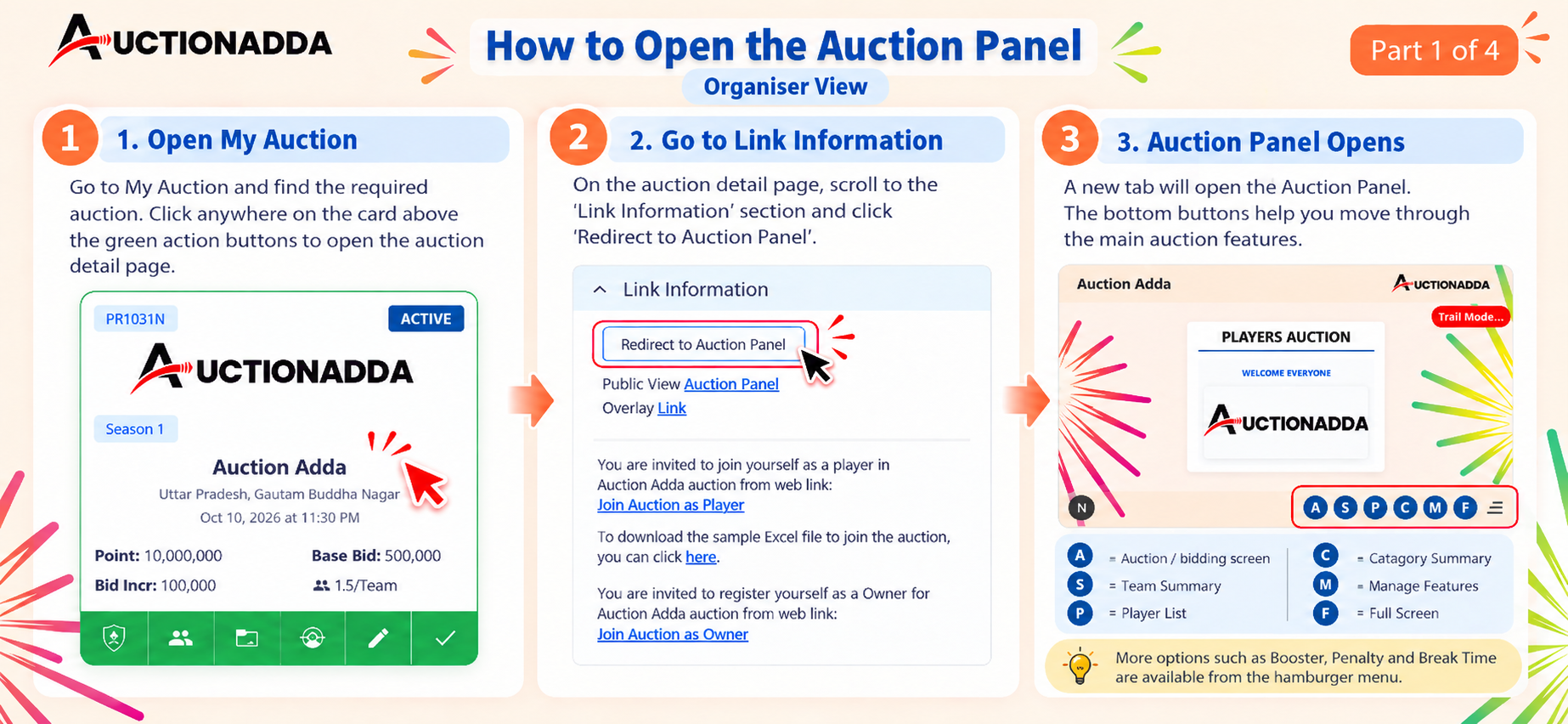
Figure 1: Organiser View — Open the Auction Panel from the Auction Detail page.
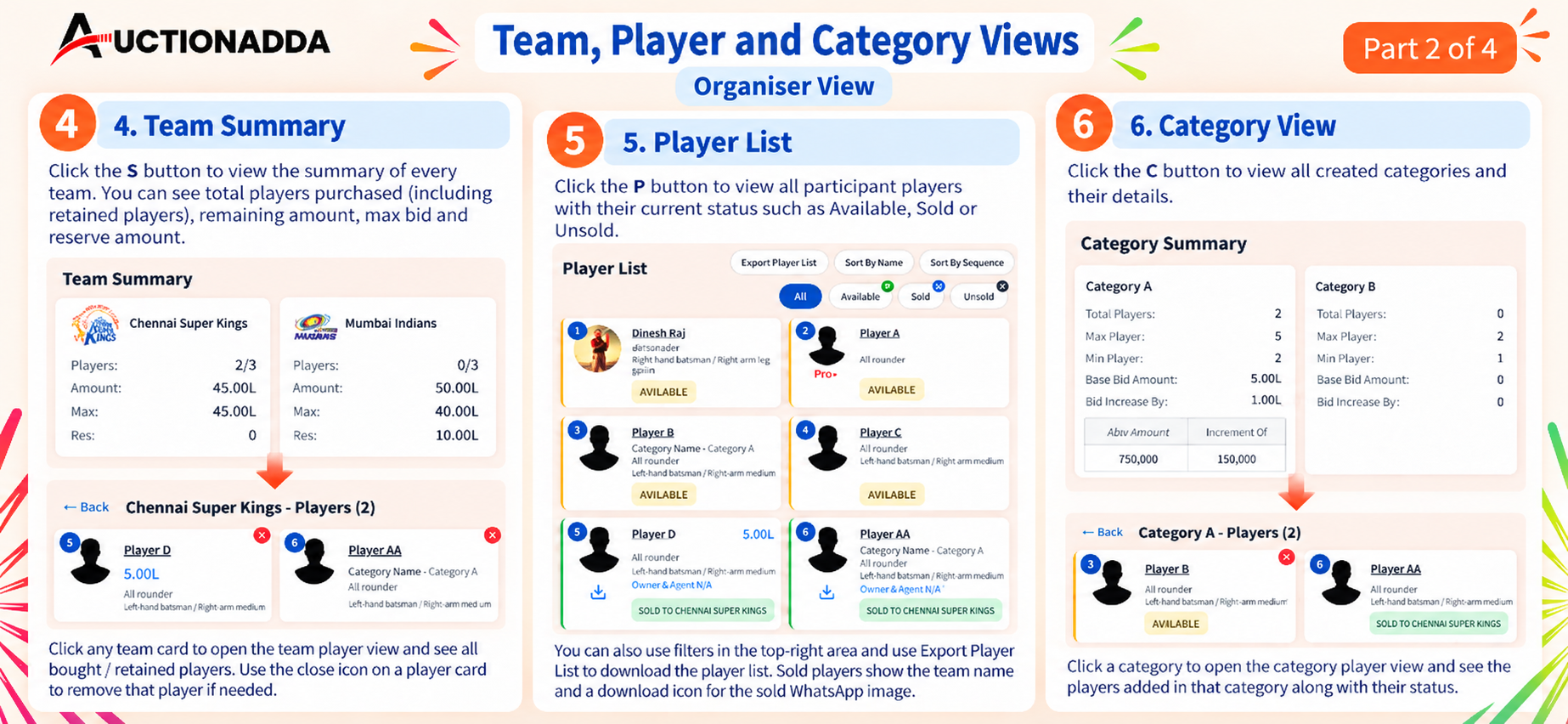
Figure 2: Organiser View — Team Summary, Player List, and Category View options.
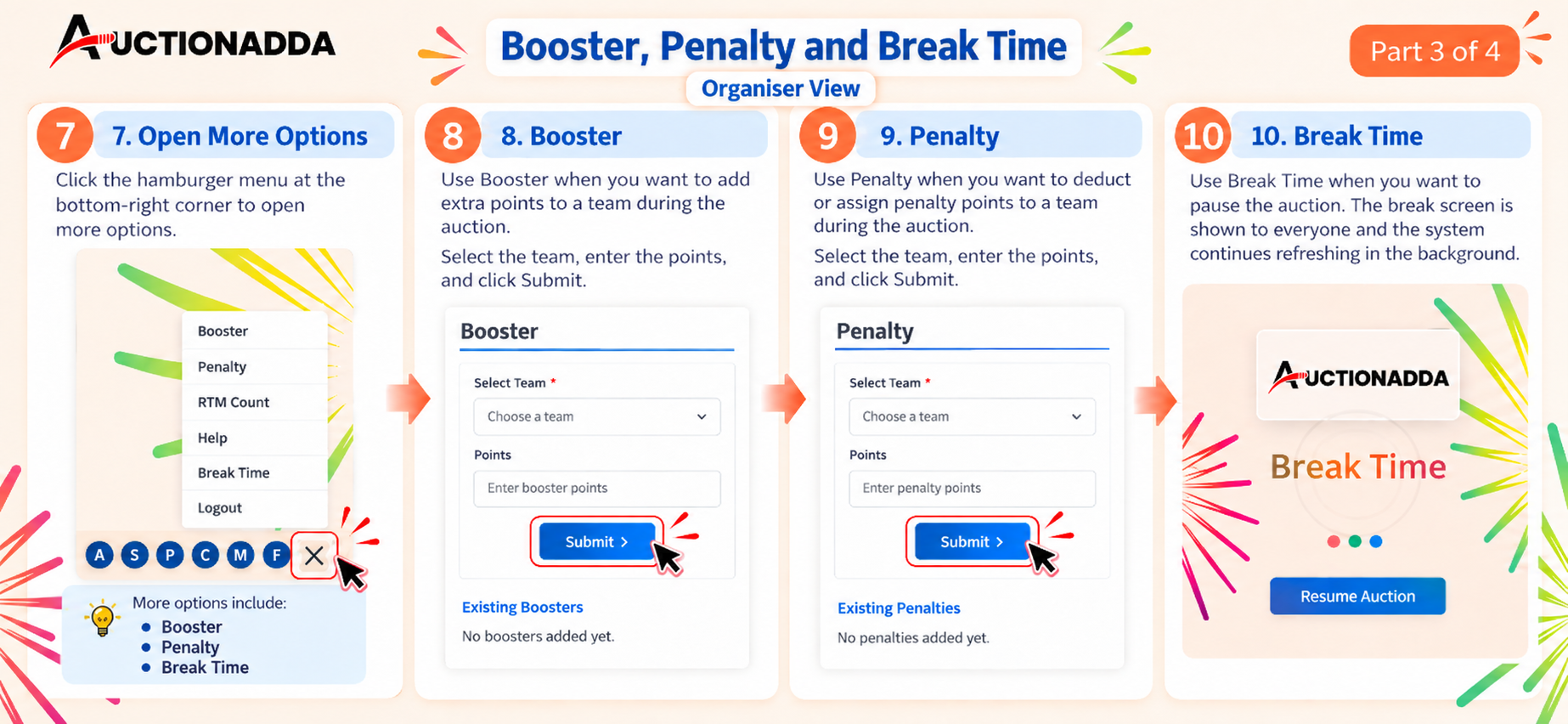
Figure 3: Organiser View — Using Booster, Penalty, and Break Time during a live auction.
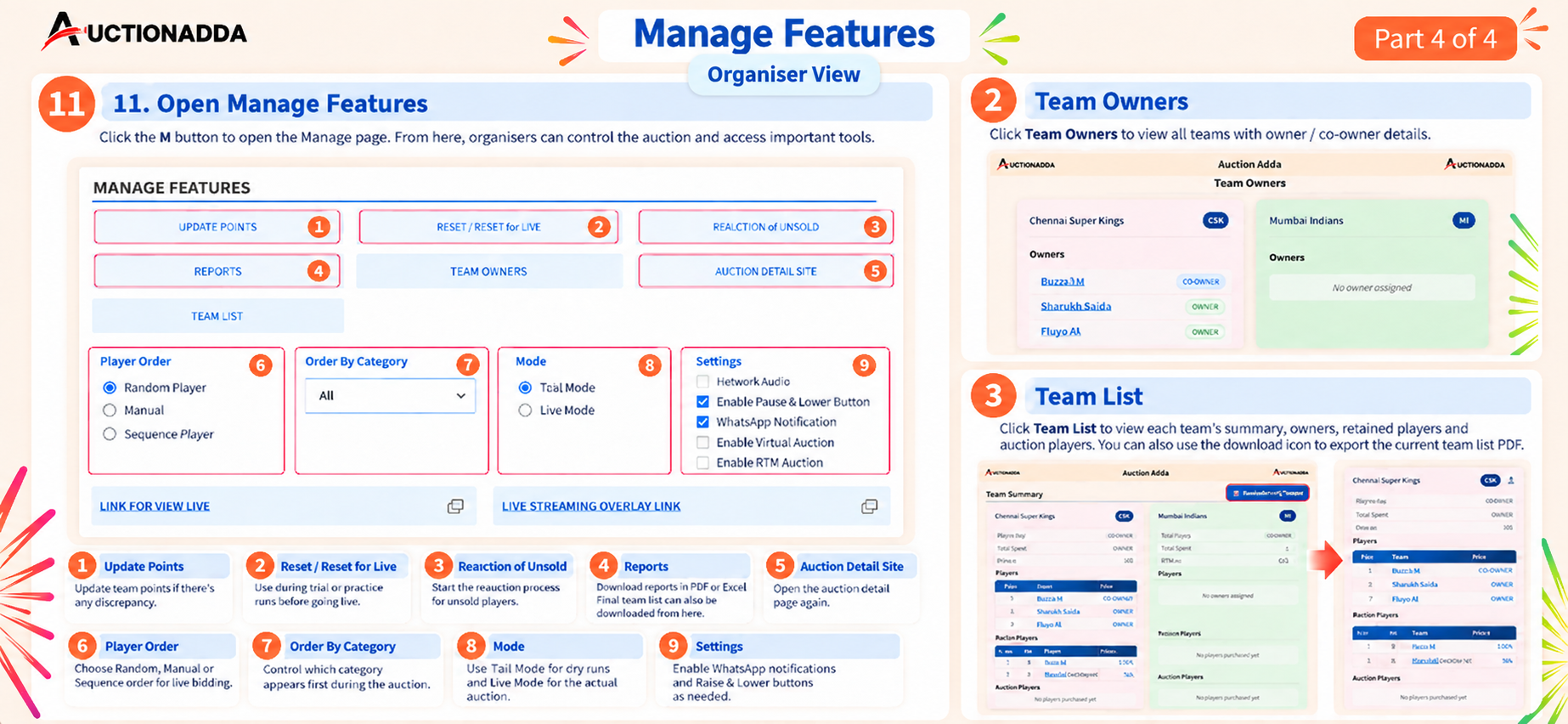
Figure 4: Organiser View — Manage Features including Update Points, Reports, Team Owners, and settings.
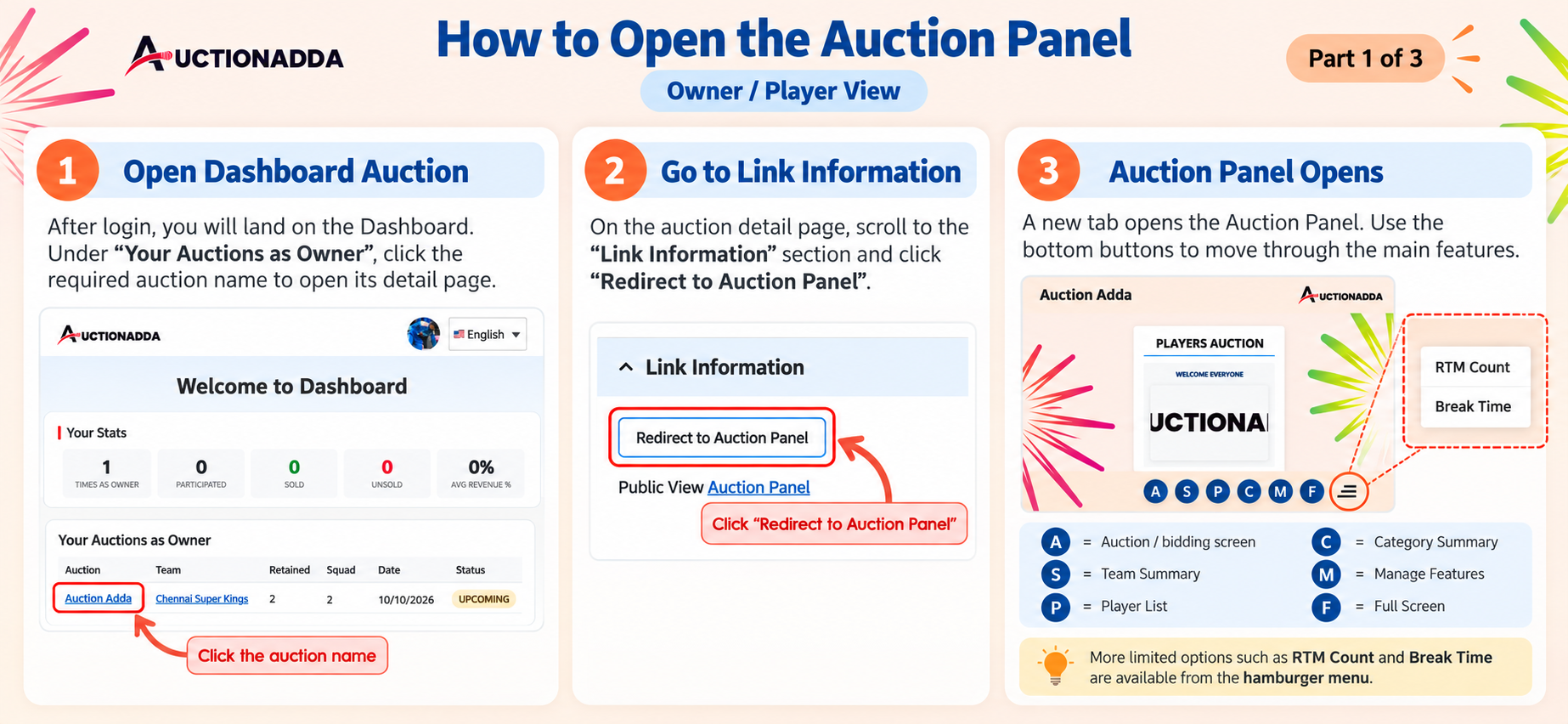
Figure 5: Owner/Player View — Open the Auction Panel from the Dashboard.
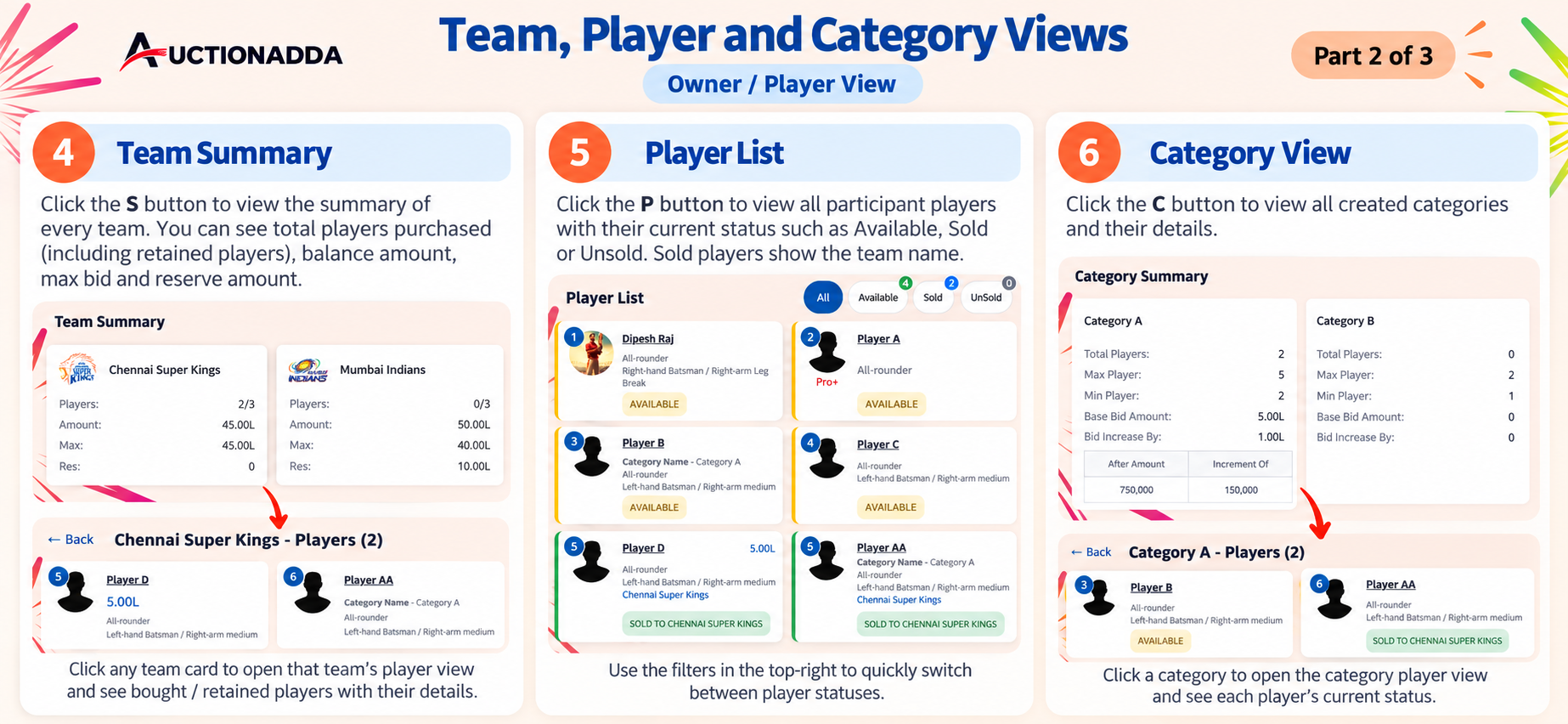
Figure 6: Owner/Player View — Team Summary, Player List, and Category View with filters.
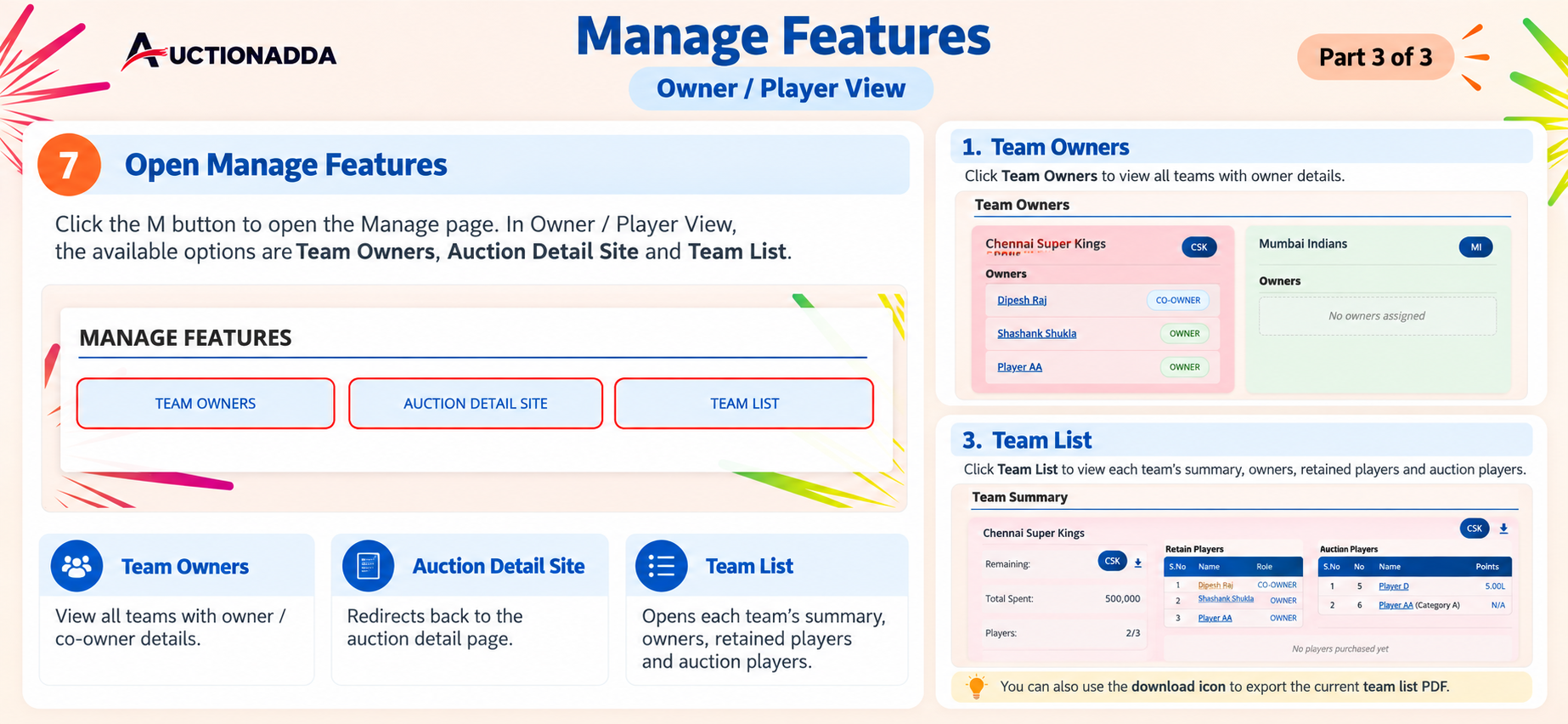
Figure 7: Owner/Player View — Manage Features including Team Owners, Auction Detail Site, and Team List.
Live Preview & Broadcasting
Get a real-time view of the ongoing auction. Share the live streaming link and overlay with your audience to broadcast the auction on platforms like YouTube.
- Organiser View: Set Live Mode, start new players, raise/lower bids, and confirm Sold/Unsold status. Use random or manual player order to control the flow.
- Guest View: Share the Public View link so guests can watch live without logging in. They can see Team Summary, Player List, Category View, live stats, and bid updates.
- YouTube Overlay: Use the Overlay Link in vMix or OBS to display player intros, live bids, career stats, and Sold/Unsold/Reauction status banners on your YouTube stream. Learn more about IPL-style live streaming.
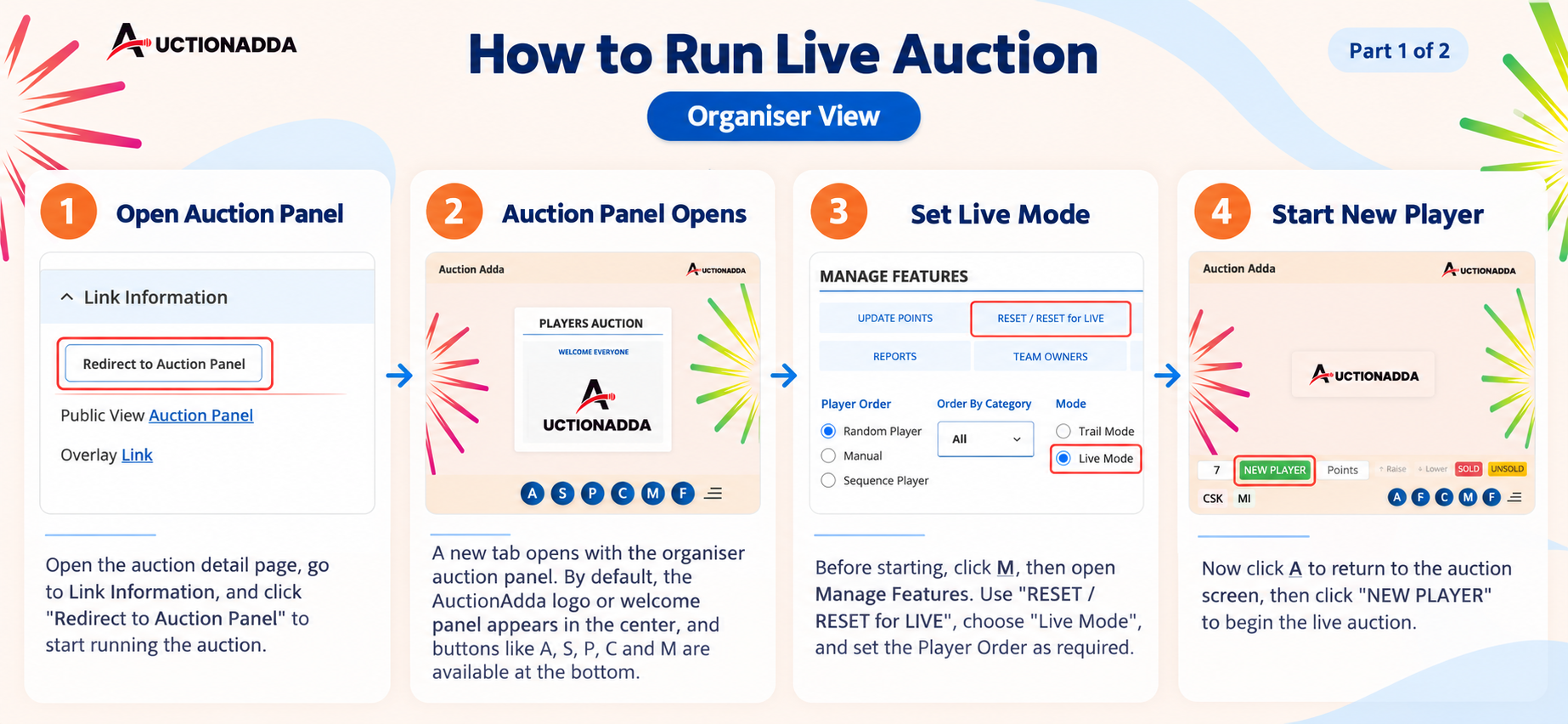
Figure 1: Organiser View — Open the Auction Panel and start by setting Live Mode and clicking New Player.
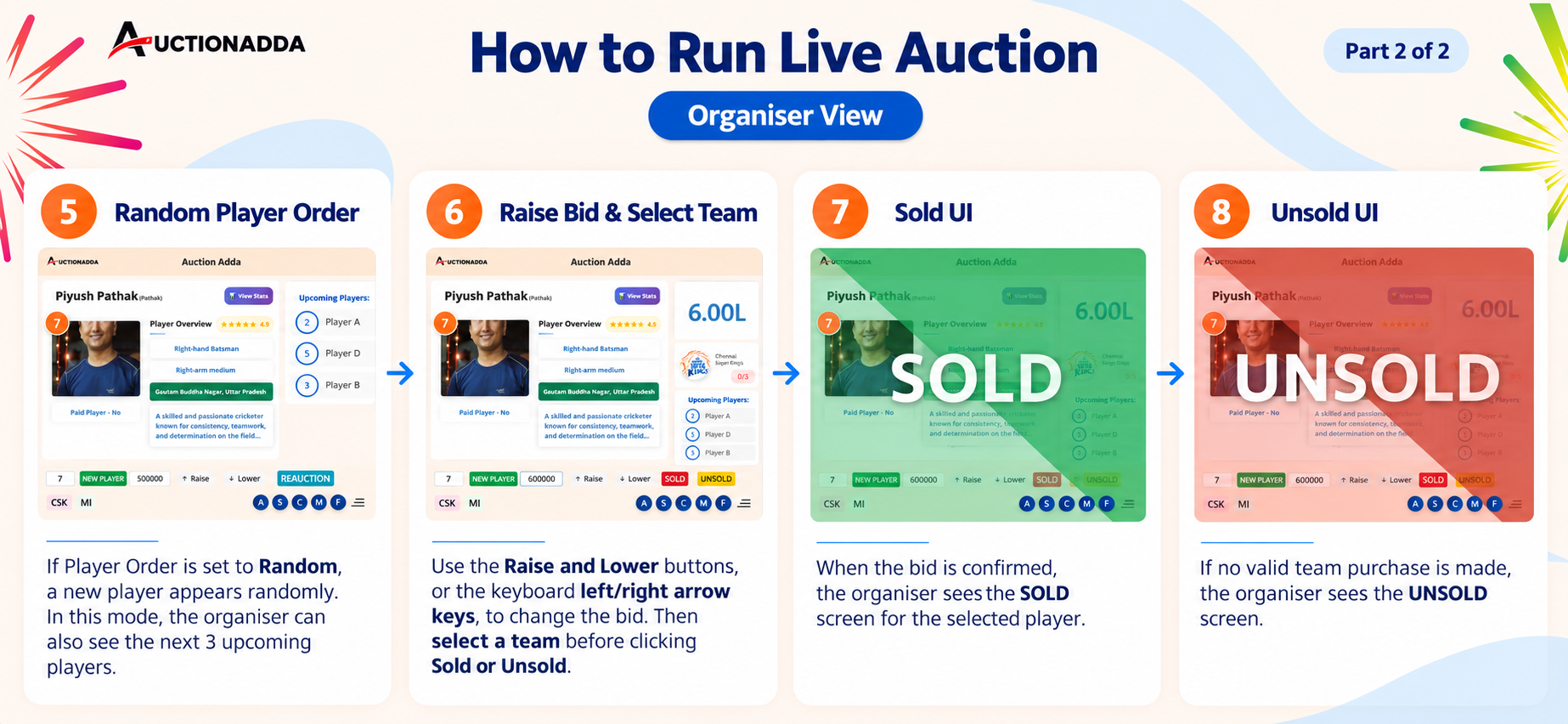
Figure 2: Organiser View — Manage live auction with random player order, Raise/Lower buttons, and Sold/Unsold confirmations.
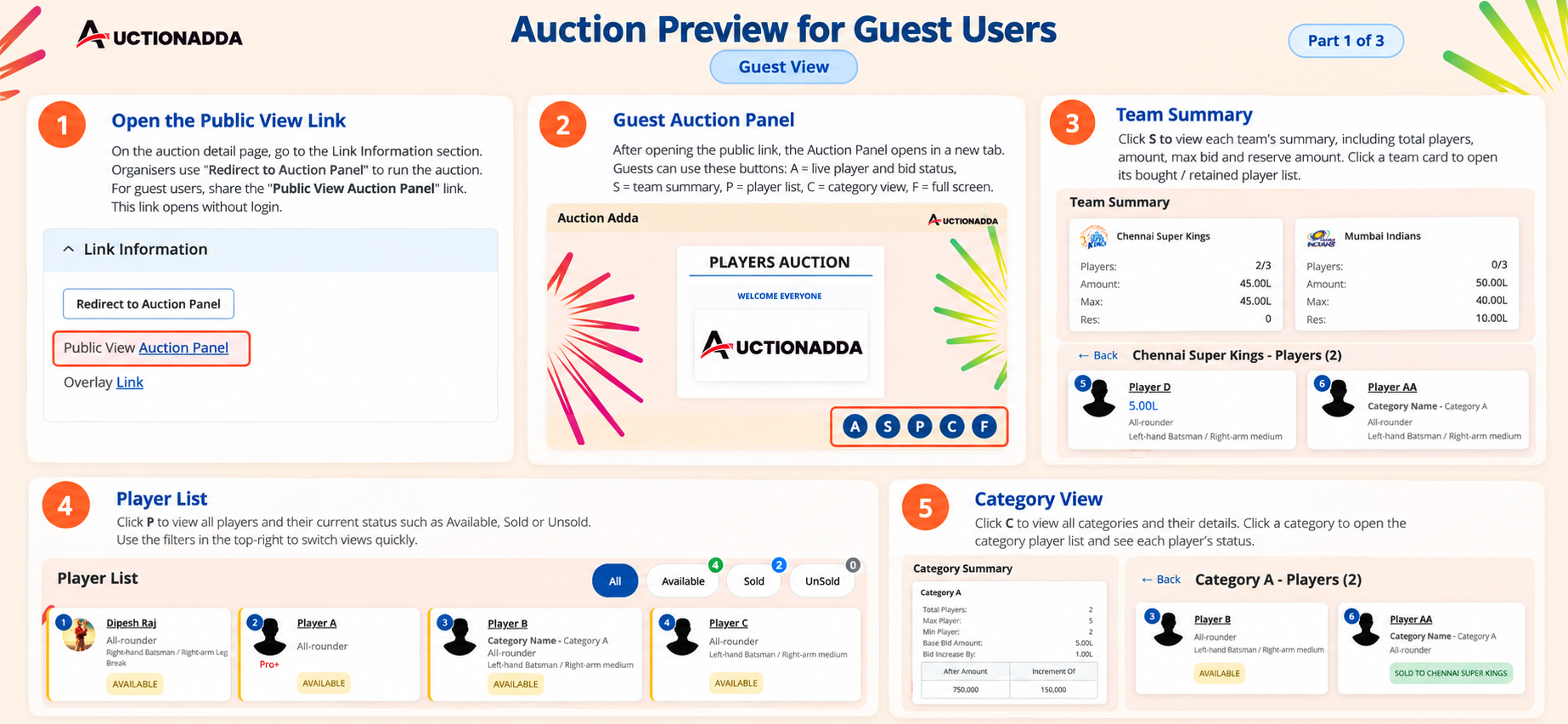
Figure 3: Guest View — Access the Public View link. Use S, P, and C buttons for Team Summary, Player List, and Category View.
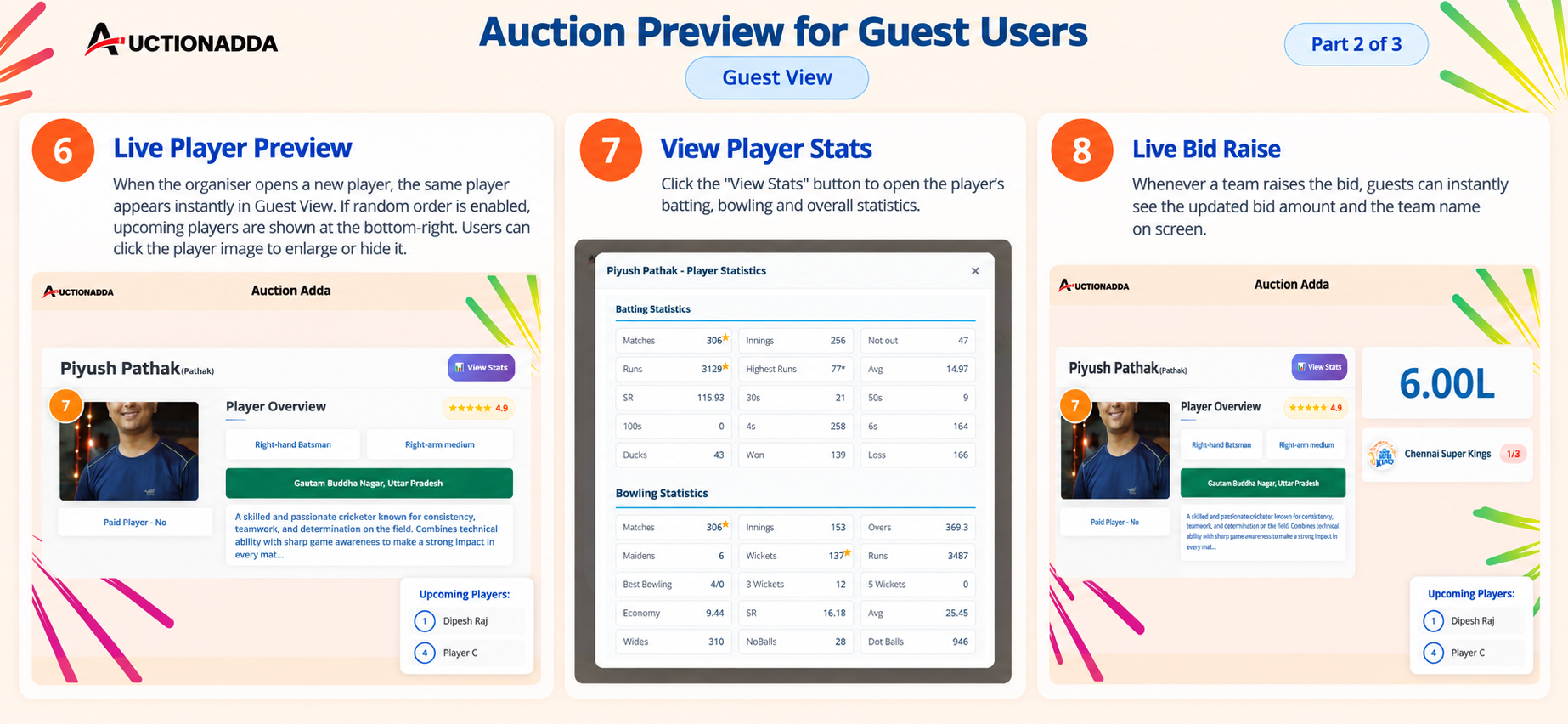
Figure 4: Guest View — Live player preview, detailed stats, and instant bid updates.
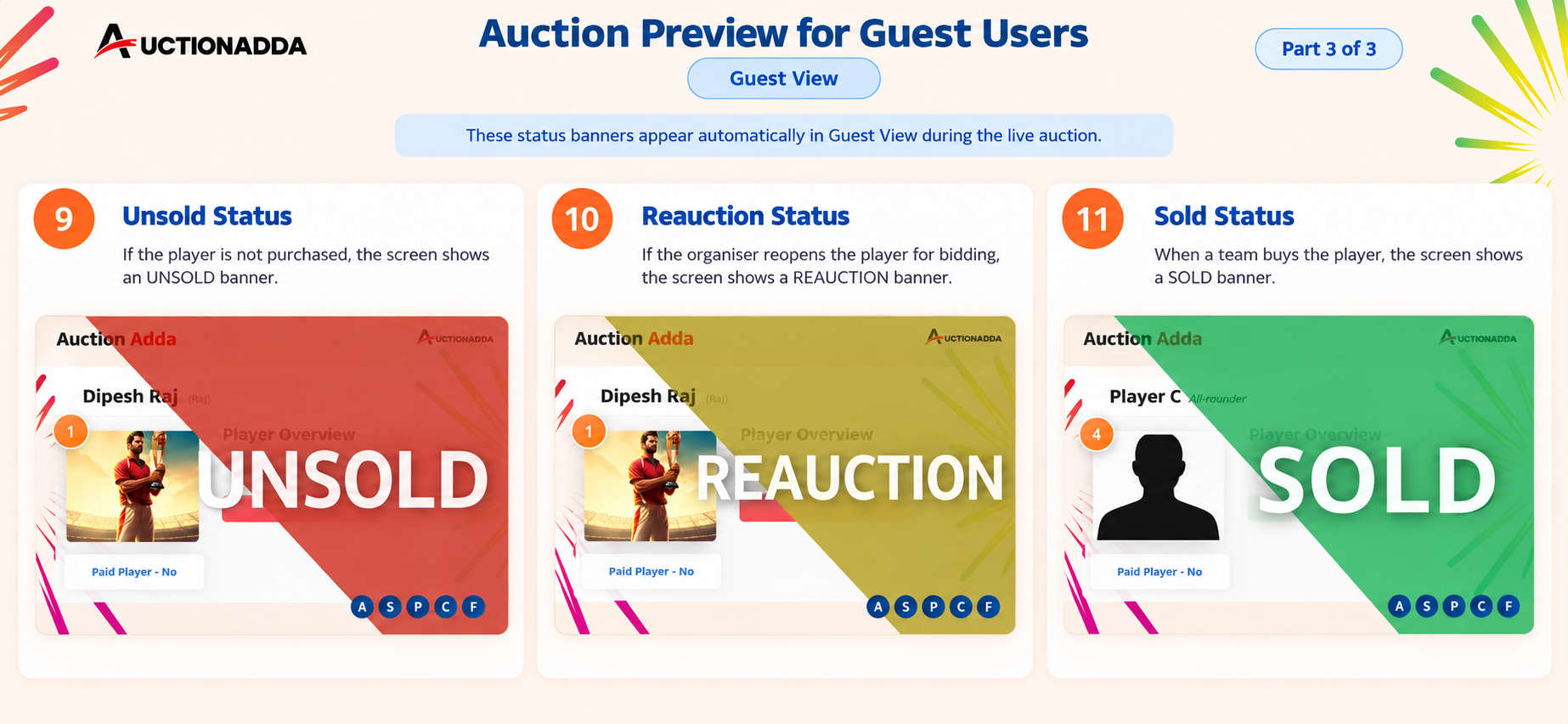
Figure 5: Guest View — Automatic status banners for Sold, Unsold, and Reauction events.
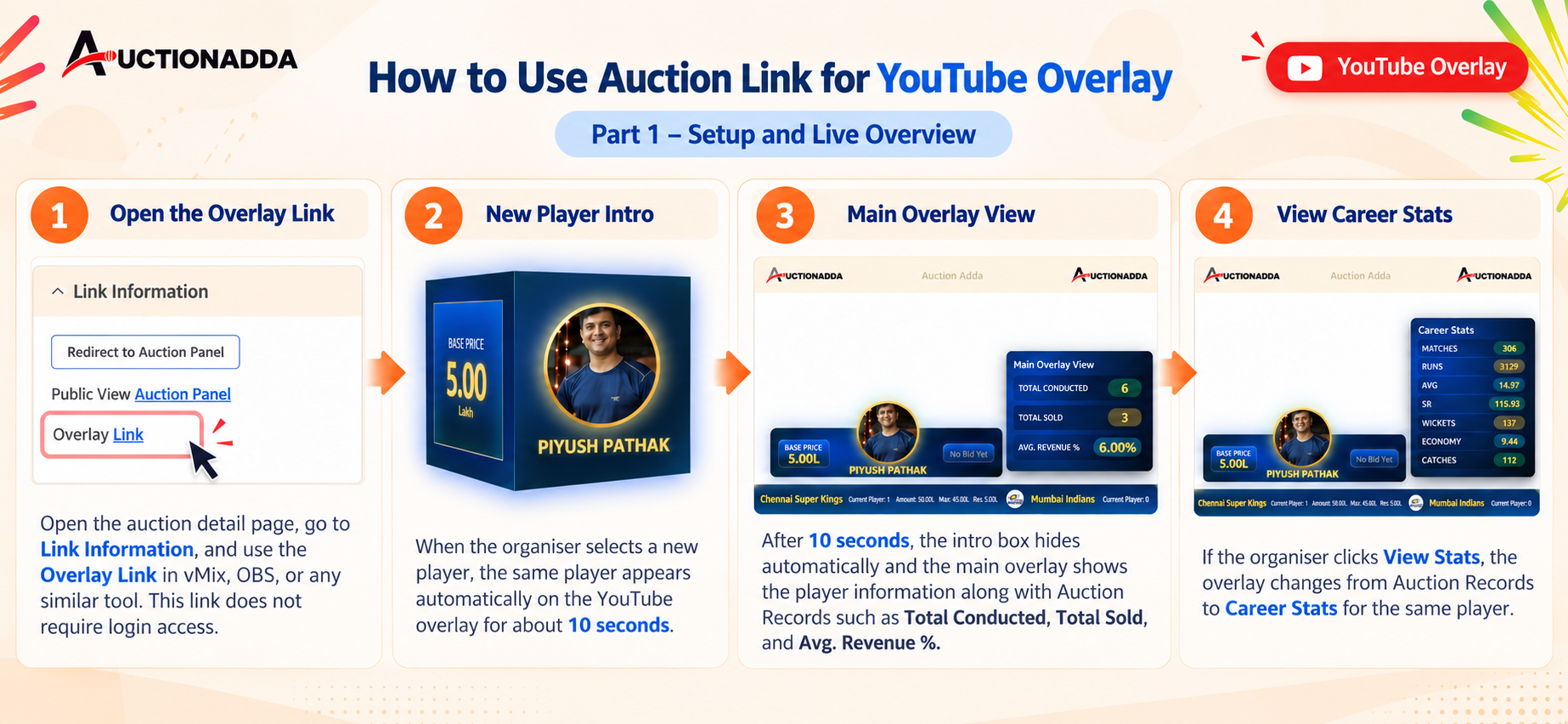
Figure 6: YouTube Overlay — Setup the Overlay Link in vMix/OBS for player intros, main overlay view, and stats.
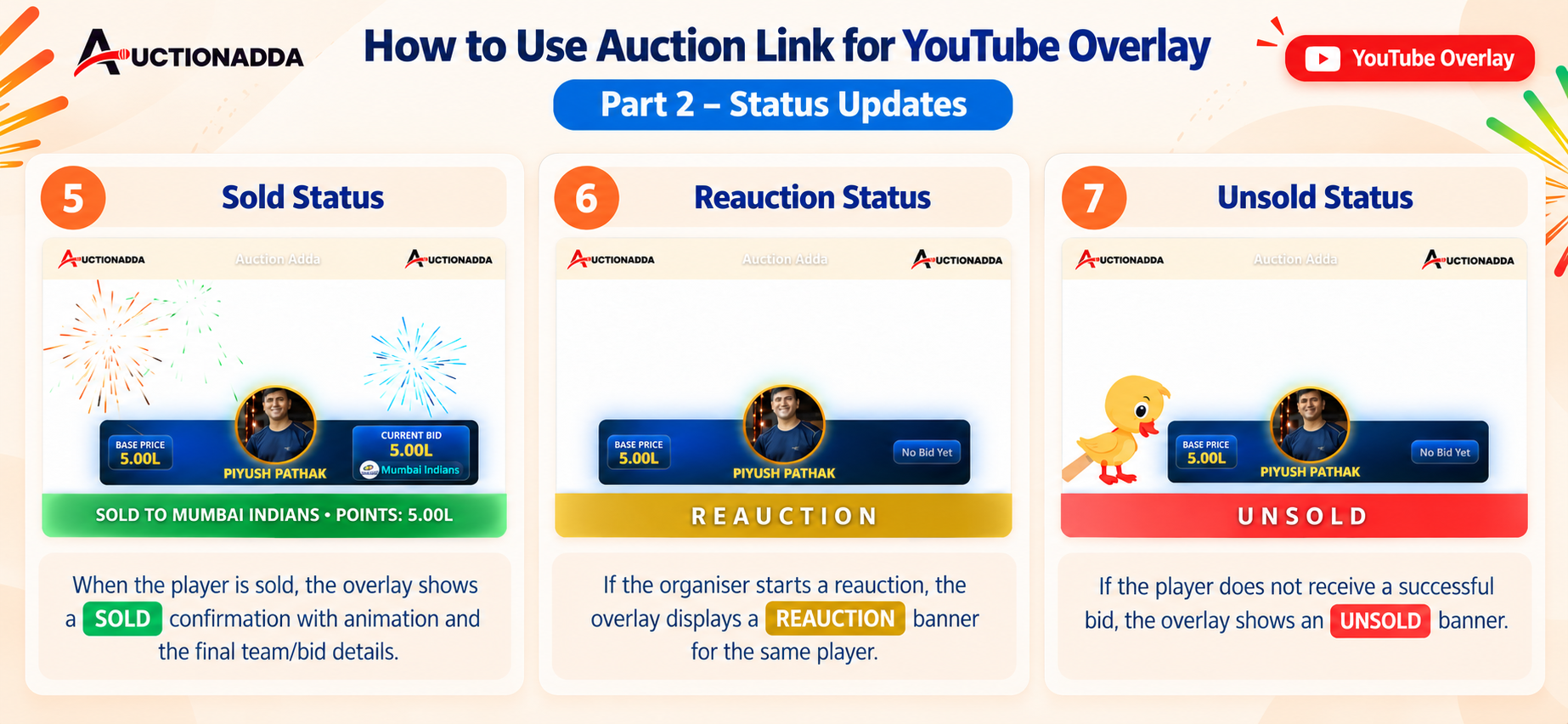
Figure 7: YouTube Overlay — Status updates showing Sold, Reauction, and Unsold banners.
Reports & Notifications
After the auction is completed, organisers can access detailed reports and players receive automated WhatsApp updates.
- Downloading Reports: Navigate to the Reports section by opening the Auction Detail page, clicking Redirect to Auction Panel, and clicking the M (Manage) button. Select Reports, choose your format (PDF or Excel), and download specific lists like Sold Players, Unsold Players, Approved Player Lists, and more.
- Final Team List Report: View a comprehensive summary including auction stats (Remaining Amount, Total Spent, Players), Owner Details, Retained Players, and Sold Players.
- WhatsApp Notifications: Players automatically receive personalised WhatsApp messages at key stages — after registration, after approval by the organiser, and when sold or retained by a team. See WhatsApp notification features for setup details.
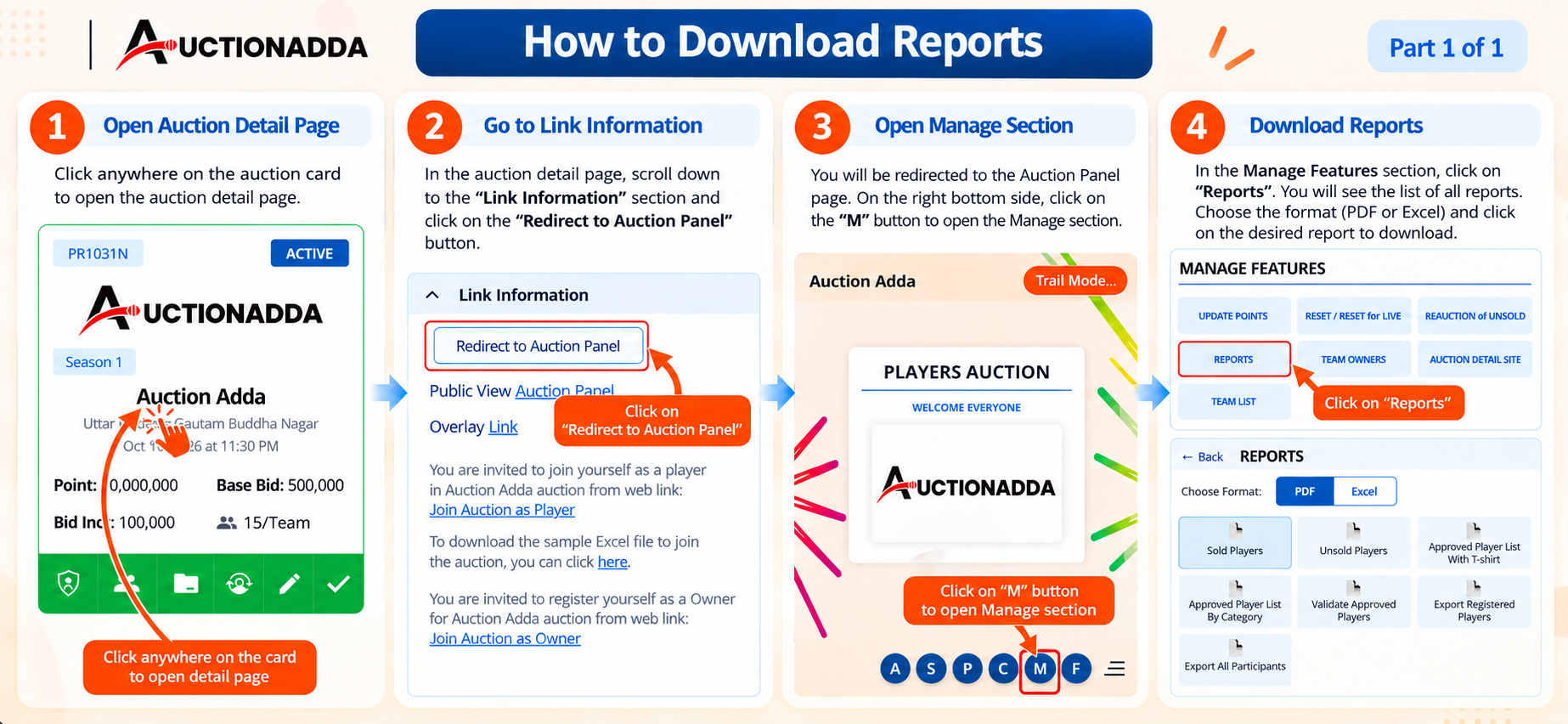
Figure 1: Navigate to Reports — open Auction Detail, click 'Redirect to Auction Panel', click 'M', select 'Reports' to download in PDF or Excel.
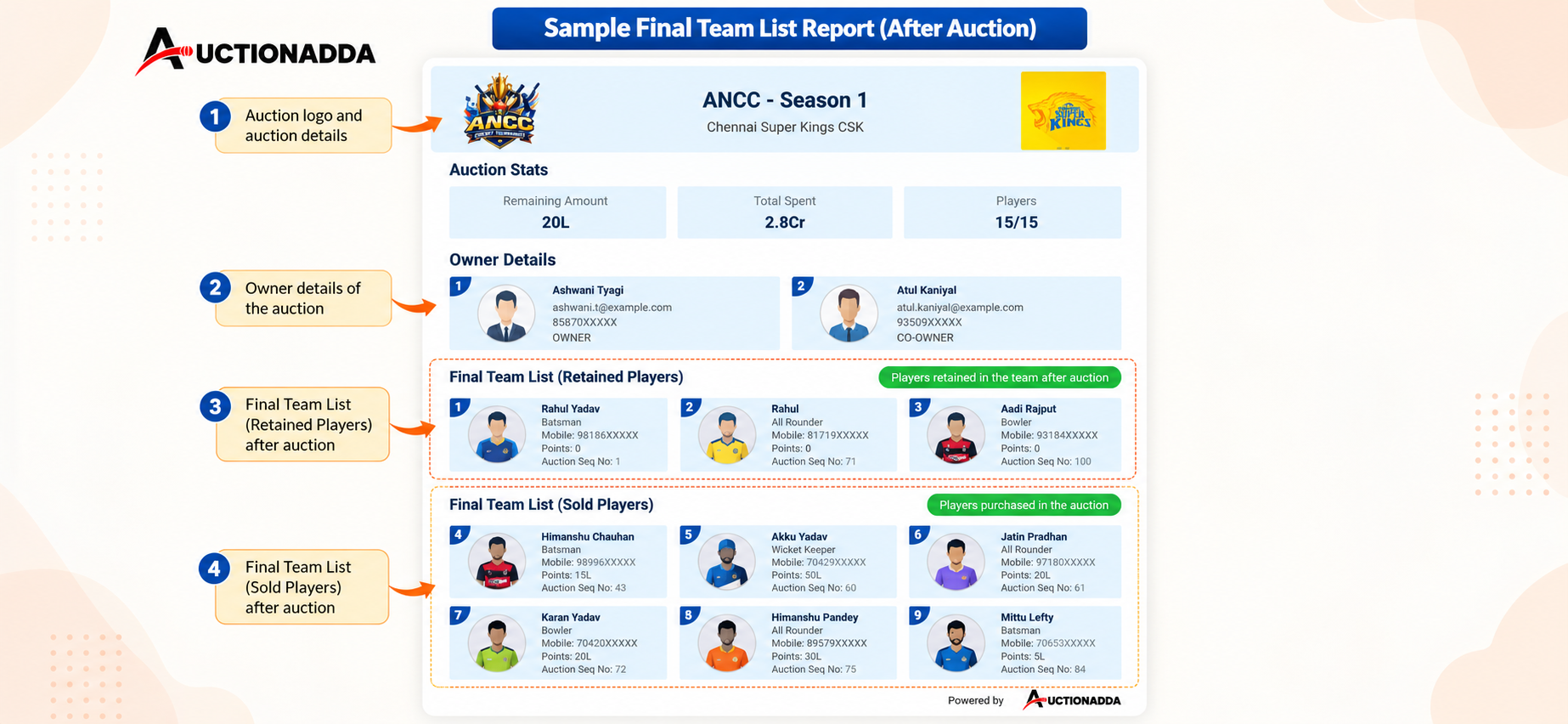
Figure 2: Sample Final Team List Report showing auction stats, owner details, retained players, and sold players.
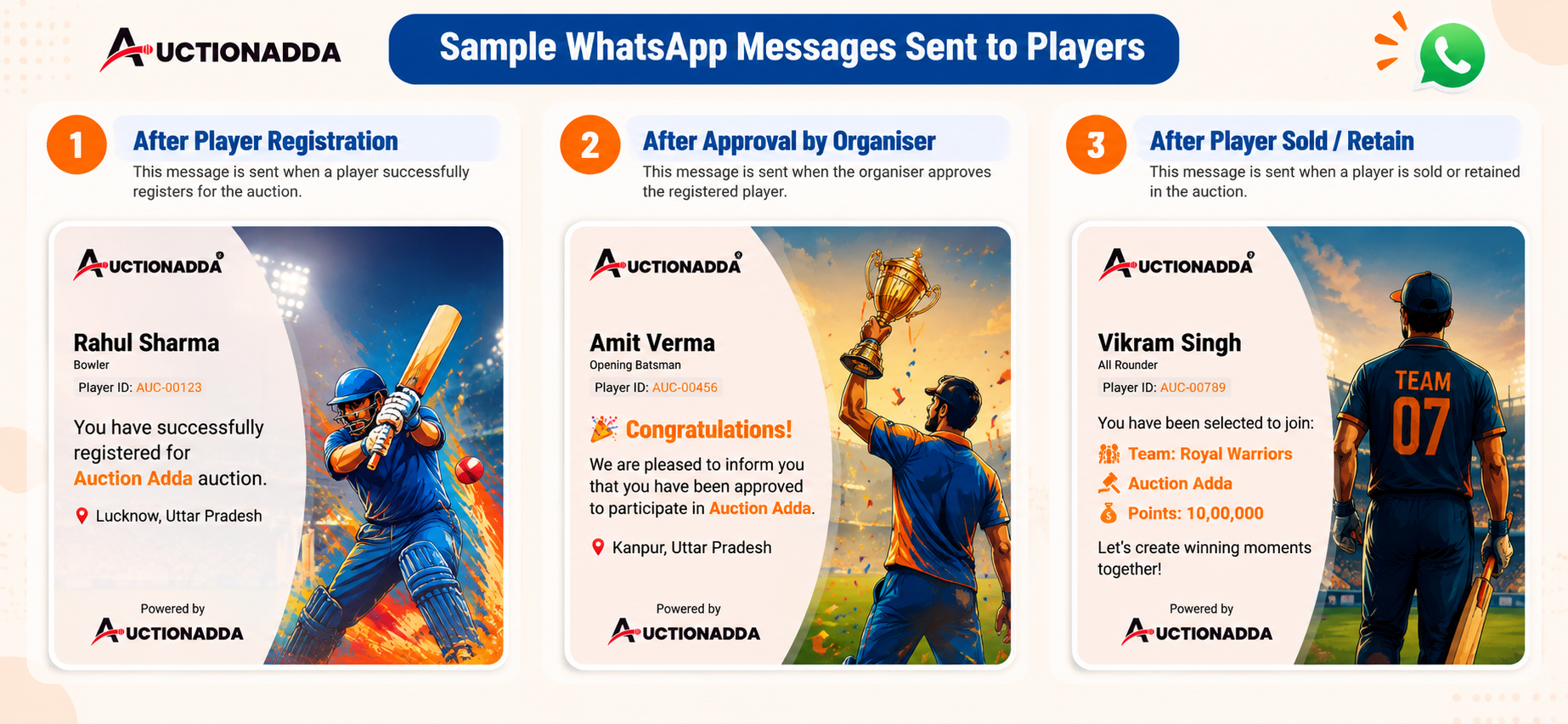
Figure 3: Sample WhatsApp messages sent to players after registration, approval, and when sold or retained.